

Managing a carpool can be difficult, especially when you need to track whose vehicle was used and ensure everyone contributes fairly. Whether your group shares fuel expenses for a single vehicle or rotates vehicles among members, this Google Sheets template can help.
The template includes two systems:
- A Carpool Rotation Tracker for groups where members take turns driving.
- A Carpool Cost Splitter for groups sharing one vehicle and dividing expenses.
Use the button below to preview and download the free template.
Preview and Download the Template
Features
- Carpool rotation tracker
- Carpool expense splitter
- Mileage-based cost allocation
- Automatic summaries
- Yearly calendar
How to Use the Carpool Rotation Tracker
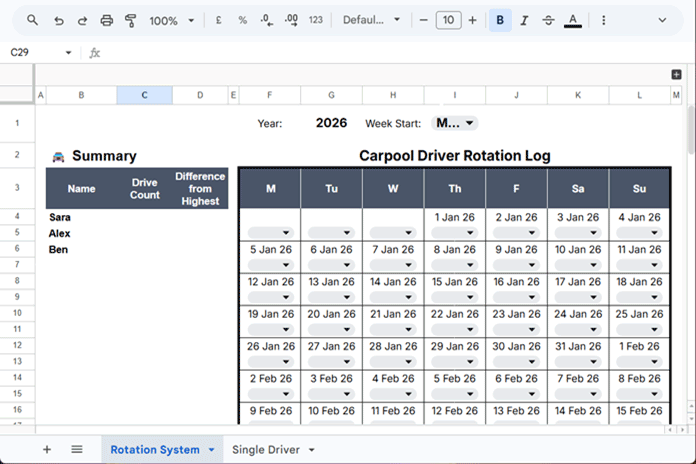
If every member has a vehicle and your group follows a rotation system, open the Rotation System tab in the template.
For example, suppose you start tracking your carpool on June 1, 2026, with three members: Sara, Alex, and Ben.
The template contains a full-year calendar in the range F3:L. Enter the year in cell G1 if it is not already set. You can also choose the week start and week end days in I1.
Next, enter the participant names in row 3:
- Sara in N3
- Alex in O3
- Ben in P3
If you have additional members, continue entering names in Q3, R3, and subsequent columns.
Now locate June 1, 2026, in the calendar. Select the member whose vehicle was used on that day. For example, choose Sara.
On the following day, select Alex. On the next day, select Ben. Continue recording the driver for each commute day throughout the year.
As you enter data, the template automatically generates a running count for each participant, allowing you to see how often each member has driven.
The most useful section is the summary table located in B3:D. It displays:
- Member name
- Total drive count
- Difference from the highest drive count
Example
| Name | Drive Count | Difference from Highest |
|---|---|---|
| Sara | 5 | 0 |
| Alex | 4 | -1 |
| Ben | 5 | 0 |
The negative value indicates how many fewer times a member has driven compared to the most active driver.
This makes it easy to identify imbalances in the rotation and keep the arrangement fair for everyone.
You can continue tracking for the entire year or clear the entries and start over at any time.
To clear the recorded names without removing the calendar dates, select the calendar range and press Delete.
Because the calendar dates are generated by formulas stored outside the calendar grid, the dates remain intact while only the selected driver names are removed. This allows you to reset the tracker quickly without rebuilding the calendar.
How to Use the Google Sheets Carpool Expense Splitter
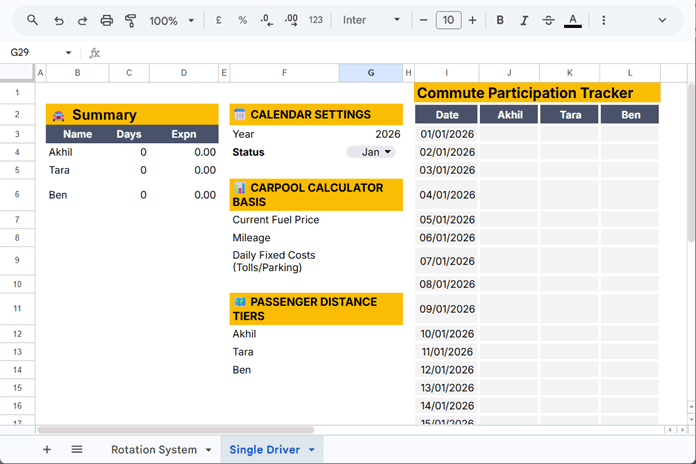
The Google Sheets carpool expense splitter works differently from the carpool rotation tracker. Instead of tracking whose vehicle was used, it calculates how much each participant should contribute based on the distance they travel.
To use this feature, open the Single Driver tab in the template.
In this setup, a single vehicle is shared by multiple members. Participants do not need to start or end their journey at the same locations. The expense calculation is based on the distance traveled by each member.
The template uses the following factors to calculate a fair cost split:
- Distance traveled by each member
- Vehicle mileage
- Average fuel price
- Additional daily expenses such as tolls and parking fees
For this example, assume three members share a car to commute to work in New Delhi, with the journey starting from Panipat.
Step 1: Set the Year and Month
Enter the year in cell G3 and select the month in G4.
For example:
- G3: 2026
- G4: June
Step 2: Enter Vehicle and Expense Details
Fill in the following values in G7:G9:
| Item | Value |
|---|---|
| Current Fuel Price | 118.00 |
| Mileage | 11.00 |
| Daily Fixed Costs (Tolls/Parking) | 400.00 |
Use an average fuel price if fuel rates change during the month.
Step 3: Enter Participant Names and Distances
Enter participant names in F12:F and their round-trip distances in G12:G.
Example:
| Name | Distance (km) |
| Akhil | 222 |
| Tara | 120 |
| Ben | 120 |
The distances differ because Akhil travels from Panipat, while Tara and Ben join the journey from Sonipat. The distance should be round trip, not one way. We also assume they travel the same distances every day during the month.
Step 4: Record Daily Attendance
Within the calendar section, i.e., under J2:L, place an X under each participant’s name for every day they traveled in the car.
Example:
| Date | Akhil | Tara | Ben |
| 01/06/2026 | X | X | X |
| 02/06/2026 | X | X | X |
| 03/06/2026 | X | X | X |
| 04/06/2026 | X | X | |
| 05/06/2026 | X | X |
Step 5: View the Expense Split
The template automatically calculates each participant’s share and displays the results in B3:D.
Example:
| Name | Days | Expense |
| Akhil | 5 | 7,620.64 |
| Tara | 5 | 4,119.27 |
| Ben | 3 | 2,167.37 |
Because the calculation considers both travel distance and attendance, members who travel farther or use the car more frequently will contribute a larger share of the total cost.
Starting a New Month
When a new month begins:
- Clear the attendance marks from the calendar.
- Select the new month in G4.
- Update the fuel price if necessary.
- Continue recording attendance as usual.
The template will automatically recalculate the expenses for the newly selected month, making it easy to track and split commuting costs throughout the year.
FAQ
How do you split carpool expenses fairly?
The template calculates each member’s share based on travel distance, fuel costs, vehicle mileage, and other daily expenses such as tolls and parking fees.
Can I use this as a carpool mileage calculator?
Yes. The cost splitter calculates expenses using the round-trip distance entered for each participant.
Can I track a carpool rotation schedule in Google Sheets?
Yes. The Rotation System tab automatically tracks how many times each member has driven and highlights differences between participants.
Is the template free to download?
Yes. You can download and use the template for personal and workplace carpool arrangements.
Conclusion
This Google Sheets carpool template helps you manage both vehicle rotation schedules and shared commuting expenses with minimal manual work. The calendar, summaries, and calculations are powered by dynamic array formulas, making the template easy to maintain and update throughout the year.
If you would like to learn how the formulas work or want a separate tutorial explaining the calculations behind the template, feel free to ask in the comments.
Need a fuel cost splitter for road trips instead of daily commuting? Check out my Road Trip Fuel Cost Splitter in Google Sheets (Free Template), which calculates each person’s share based on odometer readings and fuel expenses.
You can also explore my collection of Automated & Dynamic Google Sheets Templates for more ready-to-use spreadsheets.




