



















Plan your trips like a pro with this free All-in-One Travel and Itinerary Planner in Google Sheets — manage your itinerary, budget, and bookings all in one place.
If you’ve ever juggled between multiple apps, notes, and screenshots to plan a trip — you know how chaotic it can get. What if you could plan your entire trip — from flights and hotels to daily expenses and checklists — all in one place?
That’s exactly what my free All-in-One Travel and Itinerary Planner in Google Sheets does.
It’s a powerful yet simple spreadsheet that helps you manage both your itinerary and budget without needing any fancy travel apps.
Let’s explore how this all-in-one template works, what it includes, and why it might just become your favorite travel planning tool.
Why Use a Travel Planner in Google Sheets?
Most travel apps focus on just one thing — either your itinerary or your budget. This Google Sheets template brings everything together in one clean dashboard.
You can plan your trip in advance, track your spending on the go, and see everything — flights, hotels, events, and budgets — neatly summarized on a single screen.
All you have to do is fill in your details across 8 simple tabs, and the dashboard automatically does the rest — no coding, no formulas to edit, no stress.
Before we dive into the details, get your free copy of the template below.
Download Free Travel & Itinerary Planner
Dashboard Overview
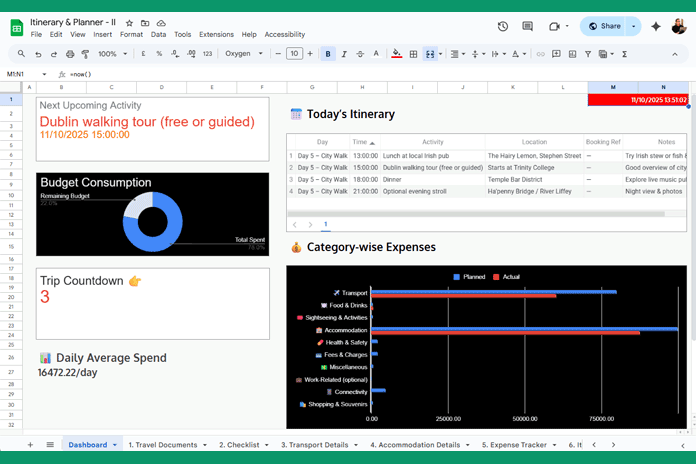
The dashboard is the heart of your travel planner — it updates automatically based on the data you enter across the tabs. Here’s what you’ll find:
- Next Upcoming Activity: Instantly see your next flight, hotel check-in, check-out, or event.
- Today’s Plan (Table Chart): Lists all activities scheduled for today in an interactive format.
- Trip Countdown: Displays the number of days remaining until your trip ends.
- Budget vs. Actual Spend (Doughnut Chart): Visualizes your spending percentage, helping you stay on top of your budget.
- Category-wise Expenses (Bar Chart): Shows a quick comparison of your spending by category.
- Daily Average Spend: Automatically calculates your average daily expenses.
Tip: There’s an index at the bottom for quick navigation. Just click a link to jump to any tab instantly.
⚡ Dashboard Refresh Tip:
The dashboard updates automatically whenever you open the sheet or make changes to your data. It won’t refresh while the sheet is in standby mode, so make sure to interact with it to see the latest updates.
The 9 Essential Tabs in the Travel Planner
Let’s break down what each tab does and how it ties into the dashboard.
1. Travel Documents
Keep all your important travel documents in one place — passports, visas, insurance, driving licenses, vaccination certificates, and more.
| Document | Reference | Expiry | Notes |
| Passport | P1234567 | 20-Jul-2030 | Keep photocopy in bag |
This sheet does not feed into the dashboard — it is purely for your personal reference and convenience.
2. Checklist
No more “Did I pack my charger?” moments!
List every item you plan to pack, select a predefined category, and check the box once it’s packed. This tab helps you stay organized before departure — no formulas are needed.
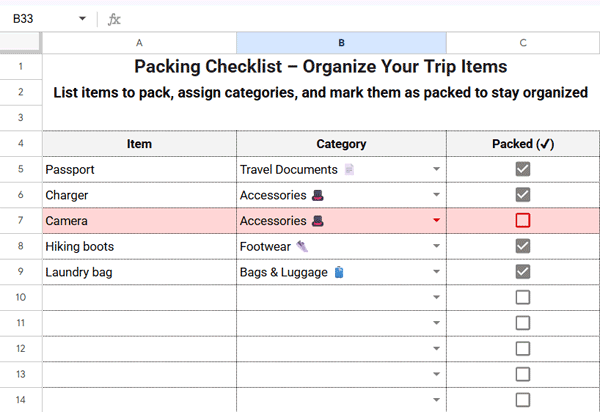
I’ve applied a highlight rule to the range A5:C that highlights rows with items listed but unchecked — indicating that they are yet to be packed.
3. Transport Details
This tab logs all your major transportation — flights, trains, buses, etc.
(Exclude local commutes like metro, taxi, or scooters — those go in the Expense Tracker.)
| Date | From | To | Mode | Carrier | Departure | Arrival | Cost | Notes |
| 6-Oct-2025 | CCJ | AUH | ✈️ Flight | ABCD Airlines | 8:30 pm | 10:50 pm | 30000.00 |
Once you fill in the date and time, the sheet automatically syncs with the dashboard to show your next upcoming activity.
4. Accommodation Details
Track all your hotel or Airbnb bookings, including check-in and check-out details.
You don’t need to manually enter Nights or Total — formulas automatically calculate these for you. I’ve highlighted these two columns in pale cyan to make them stand out.
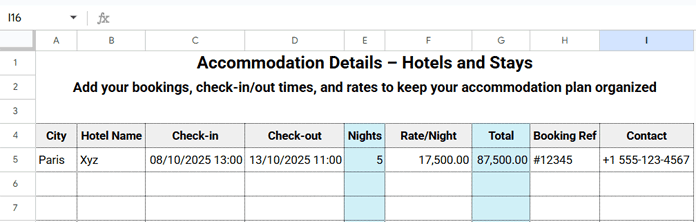
Like Transport Details, this tab also feeds into the Next Upcoming Activity on the dashboard.
Note: When entering phone numbers in the Contact column, start with an apostrophe ('). Otherwise, Google Sheets may interpret country codes like +91 as formulas.
Formulas in Use in Accommodation Details
- Number of Nights (Cell E5):
=ArrayFormula(LET(nights, DAYS(INT(D5:D), INT(C5:C)), VSTACK("Nights", IF(nights=0,,nights))))This formula calculates the number of nights for each booking and automatically spills down the column.
- Total Cost (Cell G5):
=ArrayFormula(VSTACK("Total", LET(total, E5:E*F5:F, IF(total=0,,total))))This formula calculates the total cost per booking (Nights × Rate per Night) and also spills down the entire column.
Both are array formulas, so you don’t need to drag them down manually — they update automatically as you add new rows.
5. Expense Tracker
Your one-stop place to record all your daily trip expenses.
| Date | Category | Description | Paid By | Amount | Mode | Remarks |
| 10-Jun-2025 | 🍽️ Food & Drinks | Breakfast | Self | 450 | Cash |
Categories come pre-filled from the Budget Tracker, ensuring consistency across your sheets.
To view a summary of your total spending, check Column C in the Budget Tracker tab — it automatically aggregates expenses from this sheet, as well as from the Accommodation Details and Transport Details tabs.
Pro Tip: Use this sheet for daily expenses such as local transport, meals, and snacks. Major costs like flights and hotels are already captured in their respective sheets.
6. Itinerary Planner
This is where your day-to-day plan lives — your city tours, sightseeing spots, events, or appointments.
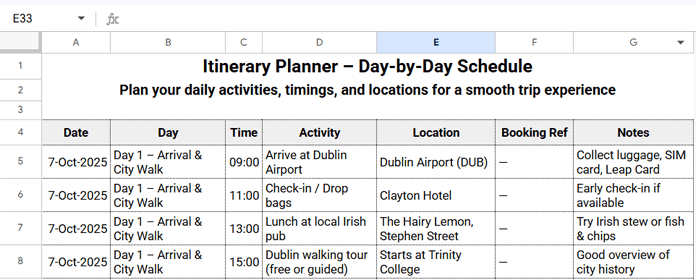
Exclude flight and hotel details (they’re already logged elsewhere).
You can even insert Google Maps locations using Insert → Smart Chips → Place.
7. Budget Tracker
Plan and track your spending across different categories with this travel budget planner. Enter your planned budget in Column B and add any notes in Column E. Your actual spending and difference will be calculated automatically.
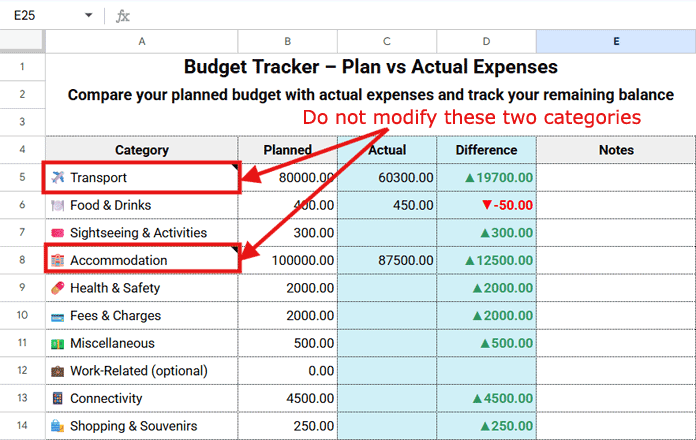
This tab feeds directly into the Dashboard’s Category-wise Expenses chart.
Please use the predefined categories in Column A. You can modify them — except “✈️ Transport” and “🏨 Accommodation,” as these are referenced in the formula in cell C4.
I recommend limiting the total number of categories to around 10 to keep your dashboard clean and readable.
Also note: these same categories are used in the Expense Tracker tab to create the dropdown list for expense entries.
Formulas Used in Budget Tracker
1. Actual Spend (Cell C4)
=ArrayFormula(LET(
  actual,
  SUMIF('5. Expense Tracker'!B5:B, A5:A, '5. Expense Tracker'!E5:E)
  + IF(A5:A="✈️ Transport", SUM('3. Transport Details'!H5:H))
  + IF(A5:A="🏨 Accommodation", SUM('4. Accommodation Details'!G5:G)),
  VSTACK("Actual", IFNA(IF(actual=0,,actual)))
))
This formula summarizes all expenses from the Expense Tracker, Transport Details, and Accommodation Details tabs.
2. Difference (Cell D4)
=ArrayFormula(VSTACK("Difference", LET(differ, B5:B - C5:C, IF(differ=0,,differ))))This formula returns the difference between your planned and actual expenses.
8. Trip Overview
Think of this as your summary tab. Enter your trip name, start/end dates, and destination(s).
Leave the pale cyan-highlighted cells unchanged — they contain formulas.
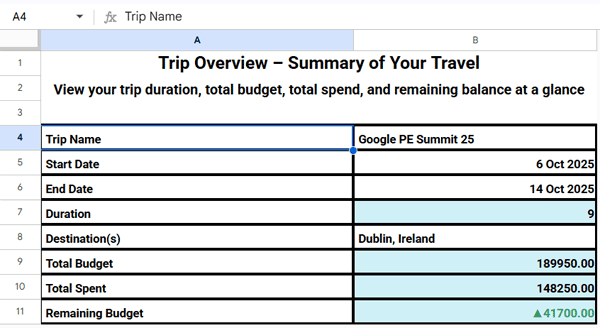
The template automatically calculates:
- Trip duration
- Total planned budget
- Total spent
- Remaining balance
All of these values are linked to your other sheets, so the overview updates automatically as you fill in your data.
9. Dashboard Helper (Backstage Magic)
This hidden gem works behind the scenes to aggregate all the data needed for your dashboard — including countdowns, upcoming events, and today’s activities.
It runs a set of smart formulas such as:
Trip Countdown (Cell B4)
=TEXT(MAX(0, '8. Trip Overview'!B6-TODAY()), "##")Upcoming Activity (Next Flight / Hotel / Event)
- Upcoming event (Itinerary Planner – Cell E4):
=ArrayFormula(XLOOKUP(NOW(), '6. Itinerary Planner'!A5:A+'6. Itinerary Planner'!C5:C, HSTACK('6. Itinerary Planner'!D5:D, '6. Itinerary Planner'!A5:A+'6. Itinerary Planner'!C5:C),,1))- Upcoming flight/train/bus (Transport Details – Cell E5):
=ArrayFormula(XLOOKUP(NOW(), '3. Transport Details'!A5:A+'3. Transport Details'!F5:F, HSTACK('3. Transport Details'!B5:B, '3. Transport Details'!A5:A+'3. Transport Details'!F5:F),,1))- Upcoming hotel/Airbnb check-in (Cell E6):
=ArrayFormula(XLOOKUP(NOW(), '4. Accommodation Details'!C5:C, HSTACK('4. Accommodation Details'!B5:B, '4. Accommodation Details'!C5:C),,1))Upcoming hotel/Airbnb check-out (Cell E7):
=ArrayFormula(XLOOKUP(NOW(), '4. Accommodation Details'!D5:D, HSTACK('4. Accommodation Details'!B5:B, '4. Accommodation Details'!D5:D),"-",1))Next upcoming item from all above (Cell E8):
=LET(data, SORTN(E4:F7, 1, 0, 2, 1), HSTACK(CHOOSECOLS(data, 1), TEXT(CHOOSECOLS(data, 2), "DD/MM/YYYY HH:MM:SS")))Today’s Activities (Cell B11)
=IFNA(VSTACK('6. Itinerary Planner'!B4:G4, FILTER('6. Itinerary Planner'!B5:G, '6. Itinerary Planner'!A5:A=TODAY())))You never have to edit this sheet — it automatically powers your Dashboard with all the key insights and upcoming activities.
Bonus: Built-in Smart Features
The template includes a few handy automation features to make your planning even smoother.
It supports currency conversion using the GOOGLEFINANCE function — for example:=GOOGLEFINANCE("CURRENCY:USDINR") converts USD to INR, and you can replace the currency pair as needed. Simply place this formula in an empty cell on the Dashboard sheet to view live exchange rates.
Note: You can read the official Google Finance disclaimer here.
Additionally, the template features a smart navigation index at the bottom of the Dashboard sheet, providing clickable links for quick and easy tab switching.
FAQs
1. Can I use this Google Sheets itinerary planner for business trips?
Absolutely! Just modify the categories in the Budget Tracker to fit business needs like “Meetings,” “Meals,” or “Transport.”
2. Does it work offline?
Yes, if you enable offline mode in Google Sheets — though charts update best when online.
3. Can I customize the look?
Of course! Feel free to change fonts, colors, and chart styles to match your theme. To do that, click Format > Theme and switch to the theme you want.
4. How many people can edit it?
It’s a Google Sheet — so you can share it with travel partners and collaborate in real time.
Conclusion
Planning a trip shouldn’t feel like managing a corporate project.
With this All-in-One Travel and Itinerary Planner in Google Sheets, you’ll have:
- Your itinerary, expenses, and documents in one place
- An auto-updating dashboard with key insights
- Easy navigation and instant clarity
No more scrolling through emails or juggling apps — everything’s right where you need it.
Try it once, and you’ll never plan a trip the old-fashioned way again.
