



















When preparing invoices or financial documents, you often need to spell out amounts in dollars and cents. However, Excel does not include a built-in function to convert numbers into words (such as “One Thousand Two Hundred Dollars and Fifty Cents”).
With Excel 365 and Excel 2024, you can build your own number-to-words converter using modern dynamic functions like LET, LAMBDA, MAP, and more—no VBA required.
This tutorial shows you how to convert numbers to words in Excel using the US/International numbering system.
The formula supports numbers up to 10¹⁵ (one quadrillion)—that is, up to 15 digits plus two decimal places.
What Is the US/International Numbering Format?
The US/International numbering system is used in most countries around the world, including the United States, Europe, the Middle East, and Africa.
It groups digits in sets of three, and the naming pattern increases as:
Thousand → Million → Billion → Trillion → Quadrillion → Quintillion → …
Examples
- 1,000 = One Thousand
- 1,000,000 = One Million
- 1,000,000,000 = One Billion
- 1,000,000,000,000 = One Trillion
Our Excel number-to-words formula follows this system and uses the currency text “Dollars” and “Cents” when spelling out amounts. If your country uses the same numbering pattern but a different currency, you can simply replace Dollars and Cents with your own currency names.
I’ll show you exactly how to customize the currency text after introducing the number-to-words formula.
> Disclaimer
This number-to-words formula is provided for convenience and general guidance. While it works for most cases, please verify outputs before using them in official, financial, or legal documents. The author and this blog are not responsible for any errors or consequences arising from its use.
Formula to Convert Numbers to Words in Excel (US/International Format)
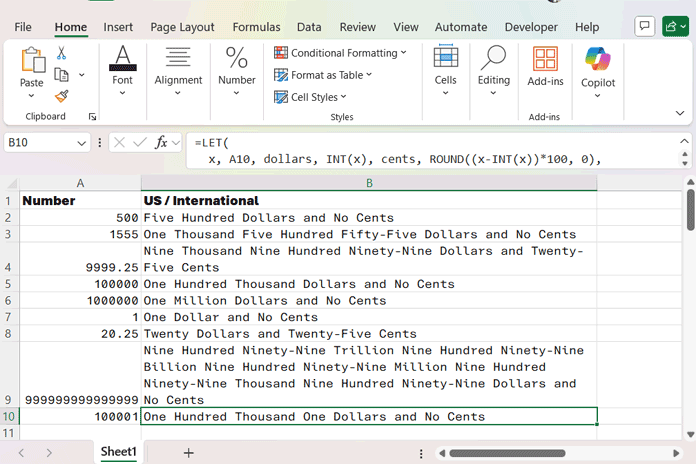
Assume the amount you want to convert is in the cell range A2:A10.
In cell B2, enter the formula below and then drag it down to B10:
=LET(
  x, A2, dollars, INT(x), cents, ROUND((x-INT(x))*100, 0),
  limit, SEQUENCE(MIN(ROUNDUP(LEN(TEXT(dollars,"0"))/3, 0), 5)),

  scale_word, LAMBDA(n, CHOOSEROWS(VSTACK("", "Thousand", "Million", "Billion", "Trillion"), n)),

  word_1_19, LAMBDA(n, CHOOSEROWS(VSTACK(
      "One","Two","Three","Four","Five","Six","Seven","Eight","Nine","Ten","Eleven",
      "Twelve","Thirteen","Fourteen","Fifteen","Sixteen","Seventeen","Eighteen","Nineteen"), n)),

  word_tens, LAMBDA(n, CHOOSEROWS(VSTACK(
      "","Twenty","Thirty","Forty","Fifty","Sixty","Seventy","Eighty","Ninety"), n)),

  word_1_99, LAMBDA(n, IF(n<20, word_1_19(n),
      TEXTJOIN("-", TRUE, word_tens(INT(n/10)), IFERROR(word_1_19(MOD(n, 10)),"")))),

  word_1_999, LAMBDA(n, LET(h, INT(n/100), r, MOD(n, 100),
      TEXTJOIN(" ", TRUE,
        IF(h=0, "", word_1_19(h) & " Hundred"),
        IF(r=0, "", word_1_99(r))))),

  number_words, LAMBDA(n,
      TEXTJOIN(" ", TRUE,
        SORTBY(
          MAP(limit, LAMBDA(i,
            LET(part, INT(MOD(n / 1000^(i-1), 1000)),
              word_1_999(part) & " " &
              IF(part=0, "", scale_word(i))
            )
          )),
        limit, -1)
      )
  ),

  IF(
    AND(ISNUMBER(x), x >= 0, x < 10^15),
    TRIM(TEXTJOIN(" ", TRUE,
      IF(dollars=0, "Zero", number_words(dollars)),
      IF(dollars=1, "Dollar", "Dollars"),
      "and",
      IF(cents=0, "No Cents", IF(cents=1, "One Cent", word_1_99(cents) & " Cents"))
    )),
    "Out of Range"
  )
)
This formula converts numbers into words following the US/International numbering system.
Modifying the Currency Labels
If your country follows the US/International numbering system but uses a different currency, you can easily customize the formula by replacing the currency words “Dollar(s)” and “Cent(s)”. These terms are highlighted for your convenience.
For example:
- Dirham & Fils
- Riyal & Halala
- Euro & Cent
- Pound & Pence
- Peso & Centavo
- Dinar & Fils
The number-to-words logic remains exactly the same — only the currency text changes.
Optional: Create a Reusable Named Function
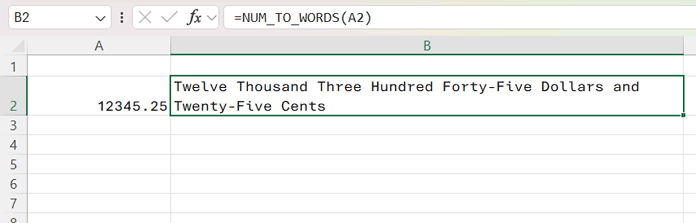
You can turn the number-to-words formula into a reusable Named Function, giving it the convenience of a built-in Excel function. Once set up, you can type =NUM_TO_WORDS(A2) anywhere in your workbook to convert numbers to words without copying the full formula each time. This keeps your worksheets tidy and makes repeated conversions effortless.
Steps to Create the NUM_TO_WORDS Named Function
1. Modify the formula
- Wrap the full LET formula inside:
=LAMBDA(amount, LET_block_here)(Replace LET_block_here with the number-to-words formula provided above.)
- Replace the reference
A2in the LET block withamount.
2. Create the Named Function
- Go to Formulas → Name Manager.
- Click New.
- Set Name:
NUM_TO_WORDS - In Refers to, paste the modified formula.
- Click OK, then Close.
3. Use it anywhere in the workbook
- Now, simply type:
=NUM_TO_WORDS(A2)This approach makes your workbook easier to read and maintain by giving the formula a native-function-like usage. It is ideal for templates such as invoices and financial forms.
How the Formula Works (Explained Step-by-Step)
This section breaks down the number-to-words Excel formula into simple, easy-to-follow parts. Even though the full formula looks long, it is built from small logical blocks that work together to convert any number into clear English words.
1. Store the Input and Separate Dollars & Cents
The formula begins with the LET() function, which stores your input number (A2) as x.
It then splits the amount into:
- dollars → the whole number part
- cents → the decimal part converted to a 0–99 value
This separation makes calculations faster and easier to manage.
2. Determine How Many Scale Levels Are Needed
Large numbers (thousand, million, billion, etc.) are built in groups of three digits.
The formula uses:
limit = SEQUENCE(...)This tells Excel how many 3-digit groups the number contains. Examples:
523 → 1 group12,450 → 2 groups7,340,112 → 3 groups
Sometimes, the number in the cell may be formatted as Currency or Accounting instead of a plain number. Using TEXT(..., "0") ensures a clean numeric string for digit counting.
3. Define Scale Words (Thousand, Million, Billion…)
The formula contains an internal list of scale names used in the US/International numbering system:
(blank), Thousand, Million, Billion, TrillionWhen Excel breaks a number into 3-digit groups, it assigns scale words based on each group’s position from the right:
- Group 1 → (blank)
- Group 2 → Thousand
- Group 3 → Million
- Group 4 → Billion
Example: 1,234,567
- Group 1 → 567
- Group 2 → 234
- Group 3 → 1
So the scale words are (blank) → Thousand → Million.
The scale_word LAMBDA function retrieves the correct scale name for each group, ensuring the final output uses proper words for thousands, millions, billions, etc.
4. Word List for Numbers 1–19
Numbers below 20 are irregular in English, so the formula stores them in a ready-made list:
One, Two, Three, … NineteenThis allows Excel to retrieve the correct word instantly without extra conditional logic.
The custom LAMBDA function that handles this list is word_1_19.
5. Word List for Tens (20, 30, 40, …, 90)
Tens multiples in English follow a regular pattern, so the formula stores them in a separate list:
Twenty, Thirty, Forty, Fifty, Sixty, Seventy, Eighty, NinetyTwo-digit numbers above 19 (e.g., 42) are built by combining the tens word with the units word:
- Tens word → Forty
- Units word → Two
The custom LAMBDA function that handles this list is word_tens.
6. Convert Any 1–99 Number to Words
A helper LAMBDA function, word_1_99, converts numbers from 1 to 99 into words:
- If number < 20 → use
word_1_19 - If number ≥ 20 → combine
word_tenswithword_1_19
This approach correctly converts all two-digit numbers into words, automatically adding a hyphen when needed (e.g., Forty-Two, Fifty-Seven) without extra conditional logic.
word_1_99 = LAMBDA(n, IF(n<20, word_1_19(n),
    TEXTJOIN("-", TRUE, word_tens(INT(n/10)), IFERROR(word_1_19(MOD(n, 10)),""))))
7. Convert Any 1–999 Number to Words
A helper LAMBDA function, word_1_999, converts numbers from 1 to 999 by handling each three-digit block separately:
- Hundreds digit → converted using
word_1_19 - Remaining 1–99 digits → converted using
word_1_99
The two parts are combined with a space as needed.
Example: 284 → "Two Hundred Eighty-Four"
This function is a building block for converting larger numbers into thousands, millions, and beyond, allowing Excel to process each three-digit segment efficiently.
8. Split the Whole Number Into 3-Digit Groups
The number_words function uses MAP and SEQUENCE to divide the main number into manageable three-digit groups:
- Units group
- Thousands group
- Millions group
- …and so on
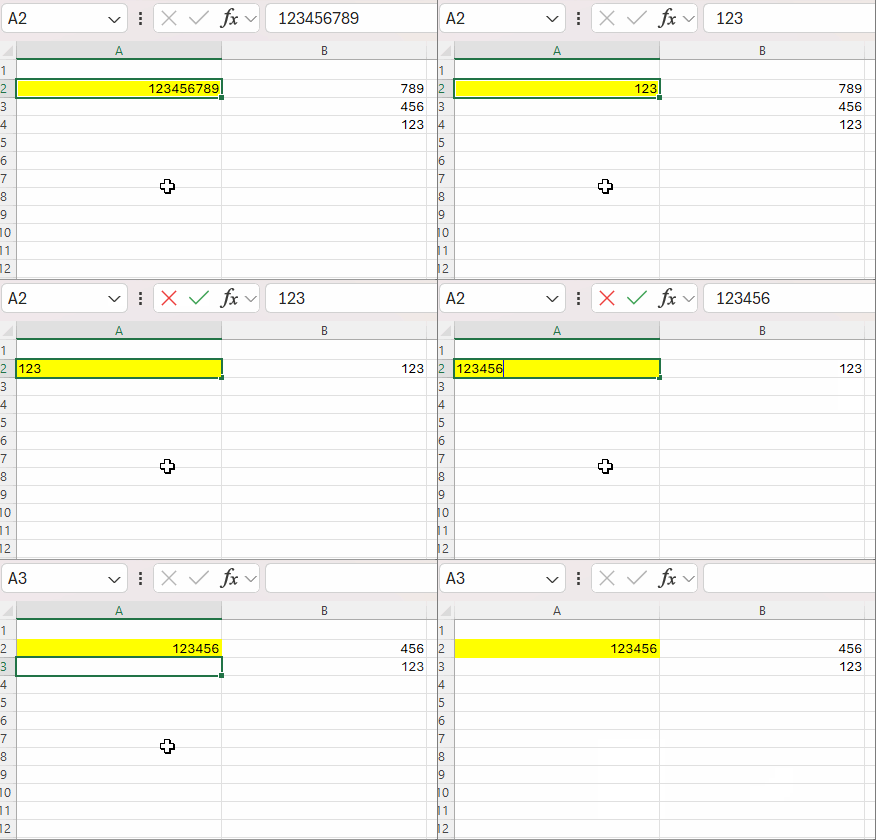
Each group is converted using word_1_999 and combined with its corresponding scale word from scale_word.
The SORTBY function is then used to reorder the groups from highest to lowest scale so that the final text reads correctly from millions → thousands → units, regardless of how the groups were processed internally.
Example: 5,321,450
5 → Million321 → Thousand450 →(no scale word)
This structured approach, with SORTBY ensuring correct order, allows Excel to handle very large numbers cleanly and efficiently.
9. Combine All Groups Into a Single Phrase
The formula uses TEXTJOIN to:
- Merge all non-empty pieces
- Keep words in the correct order
- Remove extra spaces
Example output:
Five Million Three Hundred Twenty-One Thousand Four Hundred Fifty10. Add the Currency Words (Dollars and Cents)
At the final step, the formula attaches:
- Dollar / Dollars
- Cent / Cents
It automatically handles pluralization based on the numbers. You can replace these with any currency (Dirhams & Fils, Riyals & Halalas, etc.).
11. Handle Special Cases
The formula also includes logic for:
- Zero Dollar amounts
- Zero Cents
- One Dollar / One Cent (correct singular form)
- Out-of-range numbers (above 999,999,999,999,999)
FAQs
Q1: Can I use this formula in Google Sheets?
No. This formula relies on Excel-specific functions like LET, MAP, SORTBY, and CHOOSEROWS. Google Sheets handles some of these functions differently or requires alternatives. For example:
- SORTBY → use SORT
- TEXT → optionally replace with TO_PURE_NUMBER
For a Google Sheets-compatible version, see: Convert Numbers to Words in Google Sheets (US & Indian Formats).
Q2: Can I use this formula for Lakhs and Crores (Indian) formats?
No. Converting numbers into Lakhs and Crores requires a slightly different logic and scale system. For an Indian-format solution, see: Rupees to Words Excel Formula (Lakhs, Crores, No VBA).
Conclusion
This Excel formula demonstrates how complex number-to-word conversion can be broken down into small, reusable LAMBDA functions. By processing numbers in 3-digit groups, applying scale words, and handling edge cases like zero, singular/plural forms, and large numbers, Excel can convert virtually any number into clear English words automatically.
With this step-by-step breakdown, you can now:
- Understand how each part of the formula works
- Modify it for custom currencies or formats
- Extend it for even larger numbers if needed
Using LAMBDA, LET, MAP, and related functions, Excel becomes a powerful tool for generating fully formatted number-to-word outputs without VBA or manual intervention.
