



















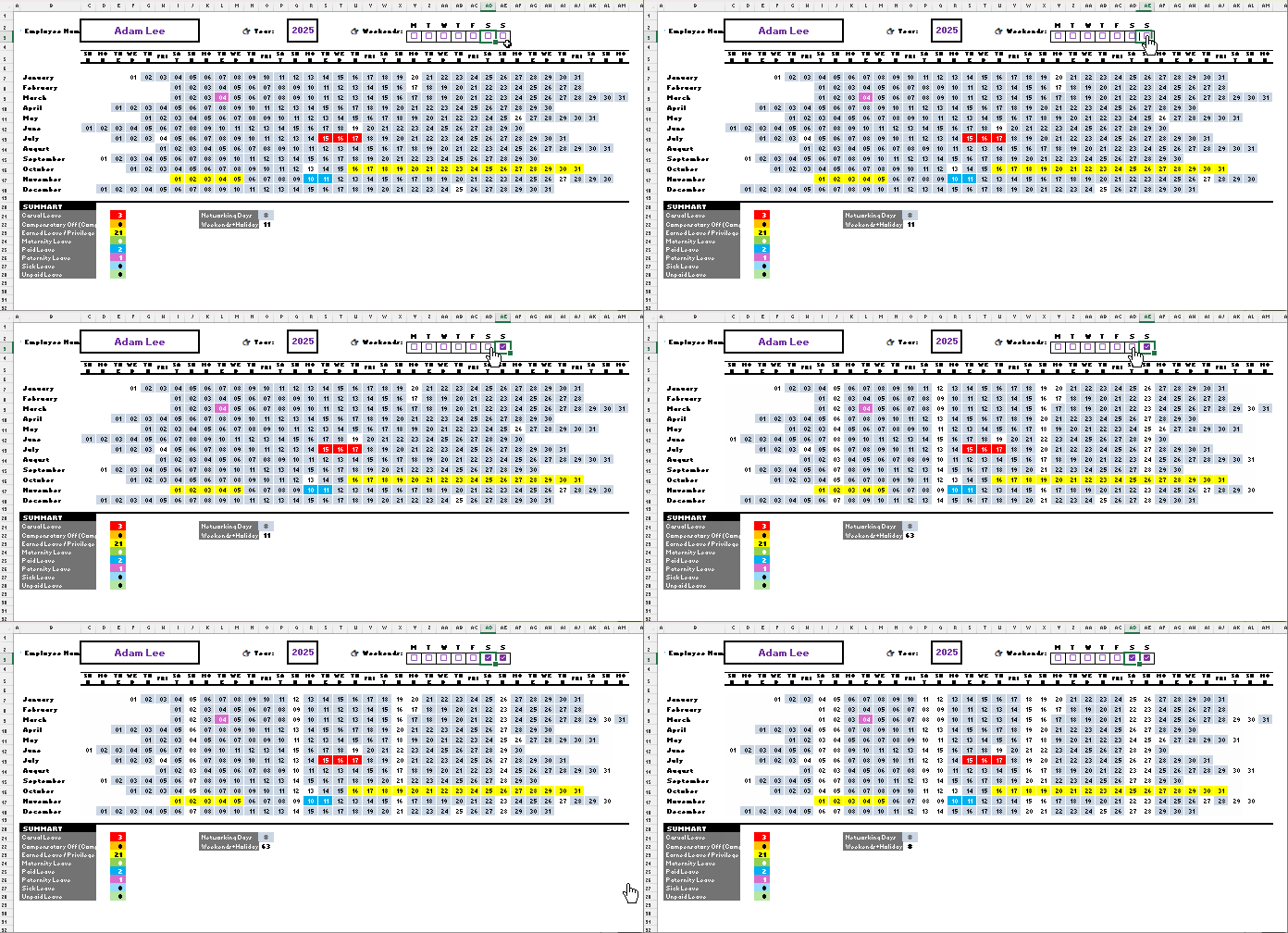
This Employee Annual Leave Tracker Template in Excel helps you map your employees’ leaves for any year in an interactive calendar. The yearly calendar adjusts automatically based on the year you enter, highlighting working days according to your selected weekends and official holidays. It also color-codes leave days based on the selected employee’s leave type.
This advanced Excel leave tracker is completely free — an enhanced version of my earlier Google Sheets Annual Leave Tracker, with additional flexibility and controls for Excel users.
Preview & Download
Download the free Employee Annual Leave Tracker Excel file below and start using it right away.
Download the Excel Annual Leave Tracker (Free)
Note: This template requires Excel 365 or Excel 2024 since it uses modern dynamic array functions.
Workbook Overview of the Employee Annual Leave Tracker in Excel
The workbook includes five sheets:
- Tracker (Dashboard)
- Leave Data
- Employees
- Leave Type
- Holidays
Each sheet has a specific purpose explained below.
1. Holidays Sheet in Employee Annual Leave Tracker (Excel)
This is where you list your company’s official holidays, in the range B4:C14, which includes prefilled sample data.

You can clear existing values and enter:
- Column B: Holiday dates
- Column C: Descriptions (optional – not used in formulas)
The table automatically expands as you add more holidays, and you can shrink it by dragging the bottom-right corner upward if you have fewer entries; be sure not to leave empty rows.
Normally, holidays will fit within 50 rows, but you can extend the table down to row 1000 to keep historical data for multiple years. Beyond that, you’ll need to adjust the formulas in the Tracker sheet — I’ll explain how to do that in the relevant section below.
Purpose
The Holidays sheet ensures that holidays are excluded from working day highlights in the dashboard calendar and are also used in the NETWORKDAYS calculation in the summary section of the same sheet.
2. Leave Type Sheet
This sheet includes eight common leave types by default:
- Casual Leave
- Compensatory Off (Comp-Off)
- Earned Leave / Privilege Leave
- Maternity Leave
- Paid Leave
- Paternity Leave
- Sick Leave
- Unpaid Leave
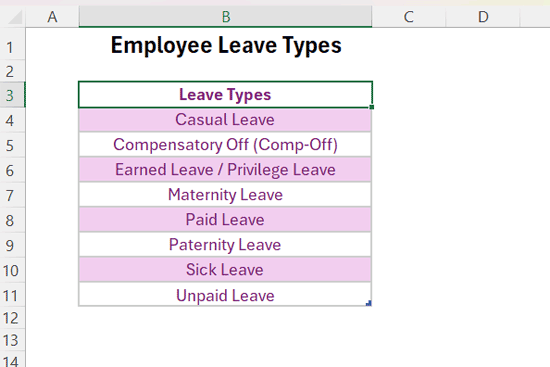
You can rename these leave types and shrink the table by dragging its bottom-right corner upward if you have fewer categories. If you add more than eight leave types, you may need to update the Tracker sheet formulas and the drop-down range in the Employees sheet, which I’ll explain in the relevant sections below.
Purpose
This sheet defines the leave categories used in:
- The Leave Data sheet (for selection)
- The Tracker sheet (for counting and highlighting by type)
3. Employees Sheet
Enter your employees’ details here.
- Column B: Employee Name
- Column C: Employee Code (optional)
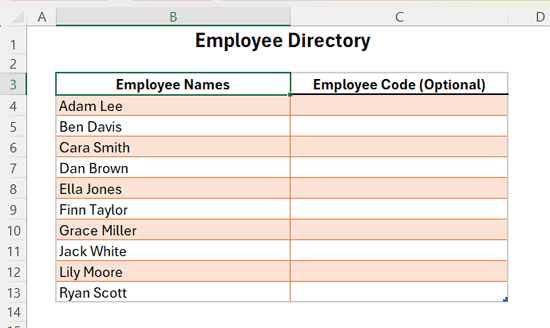
You can enter employee names up to the 1,000th row. If you go beyond that, you’ll need to update the formulas in the Tracker sheet and the drop-down list ranges in both the Tracker and Leave Data sheets — I’ll explain how to do that in the relevant sections below.
Purpose
This sheet provides the employee list used for:
- Filtering and reporting in the Tracker dashboard
- Dropdown selections in both the Leave Data and Tracker sheets
4. Leave Data Sheet in the Employee Leave Tracker Excel Template
This is your main database where all leave records are stored.
How to Use
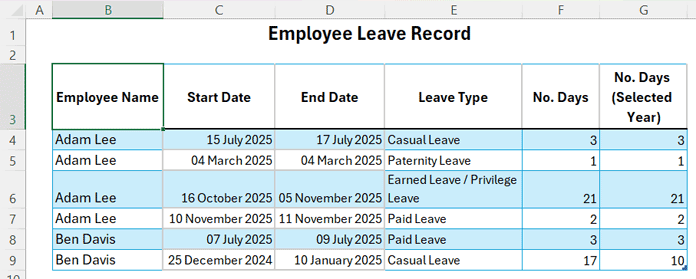
In this sheet, you only need to select or enter data in the first four columns — columns F and G are automatically calculated.
- Column B: Employee Name – Select from the dropdown (from the Employees sheet).
The current dropdown uses the rangeEmployees!$B$4:$B$1000. If you add more employees, select the dropdown in B4, go to Data > Data Validation, and update the range. Then copy and paste the dropdown down the column. - Column C: Start Date – Enter the leave start date.
- Column D: End Date – Enter the leave end date.
- Column E: Leave Type – Select from the dropdown (from the Leave Type sheet).
If you add more leave categories in the Leave Type sheet, update the data validation range here to include them, then copy and paste the dropdown down the column. - Column F: Total Leave Days – Automatically calculated.
- Column G: Leave Days in Selected Year – Automatically calculated.
Formulas
Formula 1 – Calculate total leave days:
=IF([@[End Date]],DAYS([@[End Date]],[@[Start Date]])+1,0)Formula 2 – Calculate leave days in the selected year (from Tracker!Q2):
=LET(
  start, [@[Start Date]],
  end, [@[End Date]],
  yr, Tracker!$Q$2,
  IF(
    (YEAR(start) <= yr) * (YEAR(end) >= yr),
    DAYS(
      IF(YEAR(end) = yr, end, DATE(yr, 12, 31)),
      IF(YEAR(start) = yr, start, DATE(yr, 1, 1))
    ) + 1,
    0
  )
)
Purpose
This sheet powers the dashboard with all employee leave data.
5. Tracker Dashboard — Employee Leave Calendar in Excel
This is the main control center — a dynamic dashboard displaying employee leaves, holidays, weekends, and summaries.
How It Works
- Select an employee from cell C2.
The dropdown uses the rangeEmployees!$B$4:$B$1000. If your employee list extends beyond the 1,000th row, update the data validation range accordingly to include all names. - Enter the year in cell Q2.
- Choose your weekend pattern in Y3:AE3 by checking the boxes under the first letters of the weekdays (M to S) that represent your company’s weekly off days. For example, check S and S for a Saturday–Sunday weekend, or F and S for a Friday–Saturday weekend.
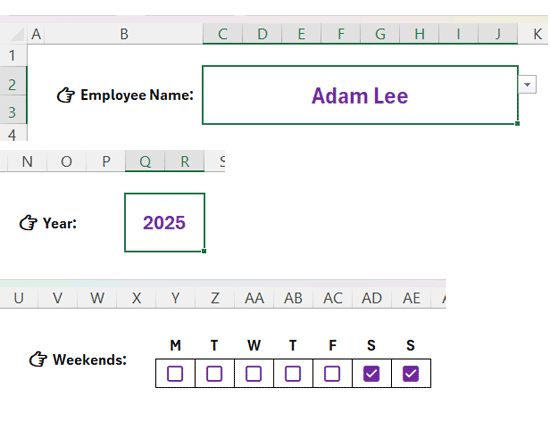
The annual calendar automatically populates.
Calendar Formula (Cell C7):
=IFERROR(
  DROP(
    REDUCE(
      "",
      B7:B18,
      LAMBDA(acc, val,
        VSTACK(
          acc,
          LET(
            dt, DATE(Q2, MONTH(val & 1), 1),
            IFERROR(
              DROP(
                HSTACK(
                  EXPAND("", , WEEKDAY(dt)),
                  SEQUENCE(1, DAY(EOMONTH(dt, 0)), dt)
                ),
              , 1),
            "")
          )
        )
      )
    ),
  1),
"")
Conditional Formatting Rules for Leave Highlights in Excel
These rules control how working days and different leave types are visually highlighted in the calendar.
1. Working Day Highlights (Bluish Grey):
=AND(
  NOT(IFNA(XMATCH(WEEKDAY(C7, 2), SEQUENCE(1, 7)*$Y$3:$AE$3), 0)),
  NOT(IFNA(XMATCH(C7, Holidays!$B$4:$B$1000), 0))
)
This rule highlights all working days (excluding weekends and holidays).
If your Holidays list extends beyond the 1,000th row, replace Holidays!$B$4:$B$1000 with the full range that covers all your holiday entries.
2. Employee Leave Highlights (By Category):
=LET(
  ftr, FILTER(
    'Leave Data'!$C$4:$D$1000,
    ('Leave Data'!$B$4:$B$1000=$C$2)*('Leave Data'!$E$4:$E$1000=$B$21)
  ),
  SUMPRODUCT((CHOOSECOLS(ftr, 1)<=C7)*(CHOOSECOLS(ftr, 2)>=C7))
)
This rule highlights an employee’s leave days based on the selected category (e.g., Sick Leave, Paid Leave, etc.).
If your Leave Data sheet goes beyond the 1,000th row, update all the ranges ('Leave Data'!$B$4:$B$1000, 'Leave Data'!$C$4:$D$1000, and 'Leave Data'!$E$4:$E$1000) to include your entire dataset.
Note:
This rule is already applied for each leave category listed below the calendar (in the range B21:B28).
For each category, the formula reference $B$21 has been updated to match the corresponding cell (e.g., $B$22, $B$23, and so on).
Adding More Leave Categories
If you add more than eight leave types in the Leave Type sheet, the additional categories will appear below B28 in the Tracker.
For each new type, create an additional Conditional Formatting rule for the calendar range C7:AM18 using New Rule, apply the same formula, and update the cell reference to match the new category’s row.
Summary Data
Below the calendar, you’ll find key leave and day statistics.
Leave Summary (E21):
=MAP(
  leave_types[Leave Types],
  LAMBDA(
    ltype,
    SUMIFS(
      leave_data[No. Days (Selected Year)],
      leave_data[Leave Type], ltype,
      leave_data[Employee Name], C2
    )
  )
)
Working Days (O21):
=NETWORKDAYS.INTL(
  DATE(Q2, 1, 1),
  DATE(Q2, 12, 31),
  TEXTJOIN("", TRUE, IF(Y3:AE3, 1, 0)),
  holidays[Holidays]
)
Weekends+Holidays (O22):
=DAYS(DATE(Q2, 12, 31), DATE(Q2, 1, 1))+1-O21See also: Google Sheets Payroll Template: Service Days Calculator with Custom Leave
FAQs
1. Can I change the year or employee any time?
Yes. Simply update the Year (Q2) or Employee (C2) — the entire calendar and summary update automatically.
2. How do I modify weekends?
Select or deselect days in Y3:AE3 to define your weekend pattern.
3. Can I add more leave categories?
Yes. You can add them in the Leave Type sheet, then update the Leave Type drop-down lists in the Leave Data sheet and extend the conditional formatting rules in the Tracker accordingly.
4. Can this handle multiple years?
Yes. The Leave Data sheet can store data for multiple years — the dashboard filters it dynamically based on the selected year.
5. Does this work in all versions of Excel?
No. This template supports Excel 365 and Excel 2024, as it uses modern dynamic array functions and the MAP LAMBDA function, which aren’t available in earlier versions.
Conclusion
This Advanced Employee Annual Leave Tracker Template in Excel gives you complete control over employee attendance and leave management — all in one dynamic dashboard.
With flexible year and employee selection, weekend customization, automatic counting of holidays and network days, and color-coded visualization, this tracker can save you hours of manual work every month.
