

If you use Google Drive on your PC, you’ve probably asked yourself: “If I delete a file here, will it also disappear from the cloud?” The answer is usually yes — unless you take a few precautions.
Google Drive’s sync feature keeps your computer and the cloud in perfect sync. That’s convenient most of the time, but it also means deleting something locally can remove it from the cloud as well. The good news? There are safe ways to delete Google Drive files on your PC without affecting the cloud. Let’s walk through them.
The Two-Sided Sync
The Google Drive desktop app has two main sections that handle syncing, based on the direction of the sync.
- My Laptop: This section is for backing up your personal computer files. It syncs folders from your computer (like your Desktop or Documents) up to the cloud.
- Google Drive: This section is for accessing your cloud files on your computer. It syncs files from your Google Drive in the cloud down to your computer. This is where you choose between Stream files and Mirror files.
This distinction is crucial, because the method for safe deletion depends on which of these two-way syncs you use.
Safe Ways to Delete Local Files Without Removing Them From the Cloud
Here are the simplest ways to keep your online files safe while freeing up space on your PC.
Method 1: Stop Backing Up a Folder (My Laptop)
This method is for when you want to stop backing up a local folder to the cloud. You will remove the sync link, but the files will remain on your computer and safely in the cloud.
- Click the Google Drive icon in your system tray (Windows) or menu bar (Mac).
- Click the gear icon and select Preferences.
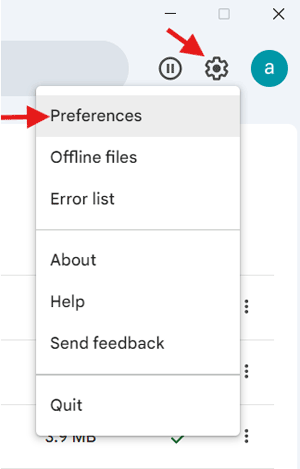
- On the left sidebar, click My Laptop.
- In the “Folders from your computer” section, you will see a list of folders you are currently backing up. Uncheck the folder you no longer want to sync.
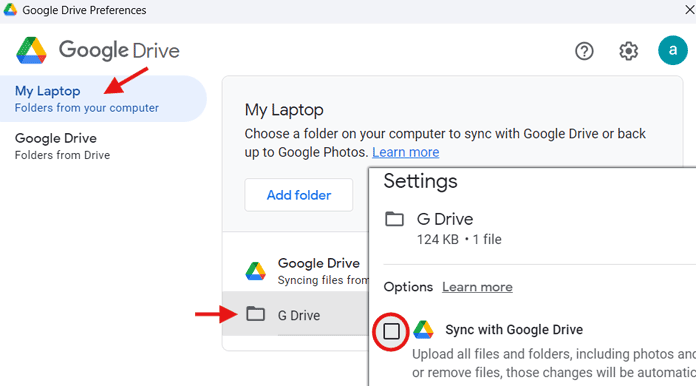
- A pop-up will ask for confirmation. Confirm that you want to stop syncing.
- Click Save.
Now, if you delete a file from this folder on your PC, the file will be removed locally, but its copy in Google Drive will remain safe.
Method 2: Free Up Space by Switching to Streaming (Google Drive)
This method is for when you have your entire Google Drive mirrored to your PC and you want to free up the space it’s consuming.
- Click the Google Drive icon in your system tray (Windows) or menu bar (Mac).
- Click the gear icon and select Preferences.
- On the left sidebar, click Google Drive.
- In the “Google Drive sync options” section, select Stream files.
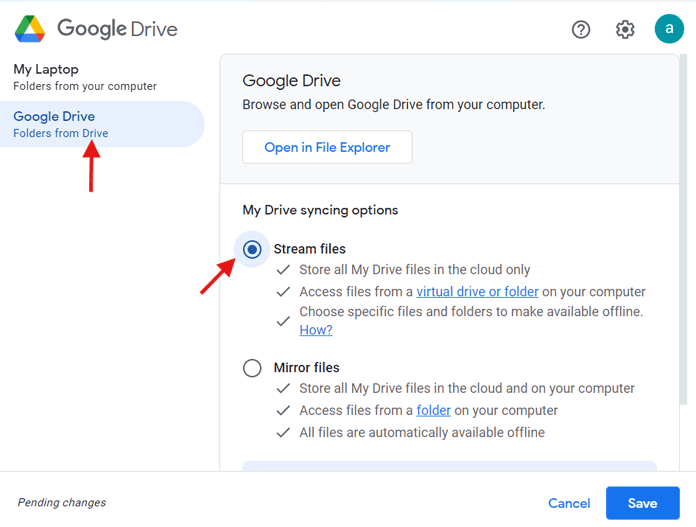
- A pop-up will ask for confirmation. Confirm that you want to switch to streaming.
- Click Save. You may be asked to restart Google Drive for the changes to take effect.
Switching from mirroring to streaming will not automatically remove your local files. You will need to manually delete the files from your local folder to free up the disk space.
Method 3: Disconnect or Uninstall Drive for Desktop
Use this if you’d rather stop all syncing completely, without touching your preferences.
- Open the Drive app.
- Click your user profile, and select Disconnect account.
- Confirm the action.
Once disconnected, the Drive app no longer syncs anything. That means you can safely delete files from your PC without worrying about them disappearing online.
Quick Checklist Before You Delete
- Verify the cloud copy: Open drive.google.com and confirm your files are there.
- Pause sync or disconnect: Use one of the methods described above.
- Back up important files to an external drive or another cloud service.
- Test with a single file first to ensure the cloud copy remains intact.
FAQs
Q — If I delete a file in the Google Drive folder on my PC, will it also delete online? Yes. If the folder is still syncing, deleting locally will remove the cloud copy too. The deletion is mirrored.
Q — Will disconnecting Drive for desktop delete my cloud files? No. Disconnecting only stops the PC app from syncing. Your cloud files remain safe.
Q — I deleted something by mistake. Can I recover it? Usually, yes! Deleted files go to the Google Drive Bin for 30 days (unless you empty it manually).
Wrapping Up
Deleting files locally without touching the cloud is totally doable — you just need to adjust Drive’s sync settings first. Whether you switch to streaming or disconnect the app entirely, you can free up space on your PC while keeping your cloud data safe. The key is to always double-check your Drive web storage before making big changes. Do that, and you’ll never have to worry about accidentally losing important files.
Resources
- How to Remove Permission Given to Uninstalled Android Apps
- How to Change Google Calendar Language to English (Quick Tips)
- How to Set Bing Search and Bing Translate Default Home Page to English
- How to Remove Multiple Tabs Opening on Chrome Start-Up
- How to Preview All Images in One Place in Google Drive
- Change the Background Color of Web Pages on Chrome (Official Plugin)

I have taken all these steps – ‘don’t remove from everywhere’ – and it is still deleting from the Google Drive. Really frustrating – it seems like such an easy thing to ask!
Hi Jayne,
Make a copy of any of your file and rename it. Try experimenting with this file. It worked for me also after second attempt only.
Thanks.
So the article doesn’t make sense and doesn’t work. Once you attempt to upload some more files, it will delete the ones no longer in the Drive folder on your PC. This is getting confusing. I want to keep the thousands of files I’ve synced and shared but I want them off my computer. Can’t figure it out.
Hi Tim,
First of all thanks for the drop by and you find time to comment. That’s important!
What I meant by my tutorial is how to remove Google Drive from your PC without affecting the web stored files. Once syncing removed means Google Drive on the web has no control over your files on your PC. So you can uninstall Google Drive from your PC. But you should check whether you have installed Google Drive on multiple devices.
Now the important part.
I have updated the post with as per the latest Google Drive features. Now without removing the syncing or uninstalling Google Drive on PC, you can delete files on your PC that without touching the web stored files. Google added new options to its desktop application. Check the last part of my tutorial for the update again.
Thank you.
Yes, I’ve been communicating with someone who has informed me that I should just be uploading my files and not using the sync app. I found in settings a place where you could choose “Change general settings
Choose how items are deleted” “Don’t remove items everywhere: When you delete something on your computer, it will stay on drive.google.com.”. Actually that doesn’t work, I tried it. Deleted it from my PC and it disappeared on the web after changing to these settings. I was told that the files were still there (where? in trash?) but couldn’t not be shared.
Hi,
It happens. Just ignore any popup message that you see after deleting the file on your PC.
It worked for me from the second attempt on wards!
Regards,
Say my machine is stolen, is there a way to remotely wipe the Drive folder yet keep the files in the cloud?
Think about it. The thief would have to be simultaneously stupid and smart enough to:
1. Connect your computer to the internet.
2. Login using your account and not change the sync options.
3. Wait for your (non-existent wipe command) to finish.
With the existing software, you would have to delete all your files from My Drive, wait and hope…
I recomend : Don’t use syncing, but use the “Upload” function. Upload any file from your PC. Now you can delete this file from your PC, the copy in the Google drive (the remote one, NOT in the “Google drive” folder on your PC) will still exists.
Oops! Oh my…. My solution doesn’t work. It is possible to upload a file to the remote google drive, but the “smart” SW will immediately copy the uploaded file back to your PC, to your “google drive” folder on your PC.