

Google Calendar is one of the best tools to stay organized in our busy lives. But if you’re accessing it from another country, your Google Calendar may appear in a different language. While it’s simple if you recognize the displayed language, it can get frustrating when the interface is in a language you don’t understand.
In this guide, I’ll show you how to change Google Calendar language to English—both temporarily and permanently—with quick tips and screenshots.
Steps to Change Google Calendar Language to English
1. Temporary Language Change Using Google Chrome
If Google Calendar is in an unfamiliar language, you can temporarily switch it to English in Chrome.
- Open Google Calendar in Google Chrome.
- Right-click anywhere on the page and select “Translate to English.”
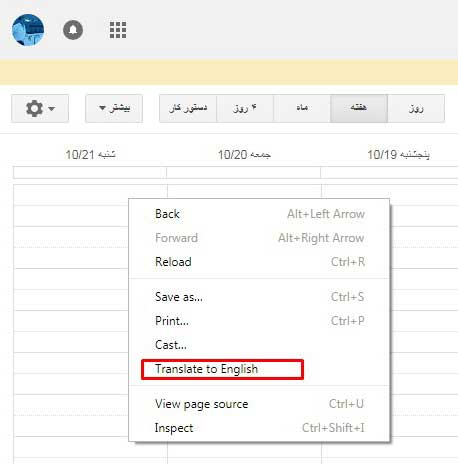
- Chrome will instantly translate the interface into English.
- If it doesn’t work on the first attempt, try again—it will translate eventually.
Remember, this is only a temporary change. The next time you open Google Calendar, the original language may return.
2. Permanently Change Google Calendar Language to English
To make a permanent change, you need to update your Calendar settings.
- First, follow the above temporary step to make the interface readable.
- Click the Gear icon (top right corner) and select “Settings.”
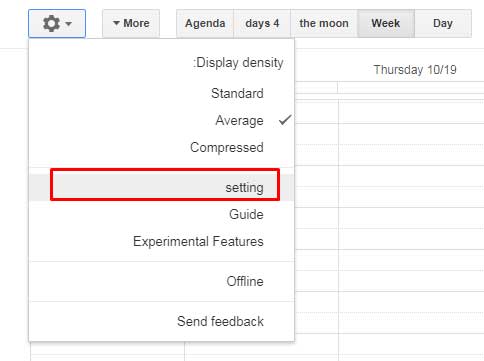
- In the Settings menu, look for the Language and Region section.
- Here you can set:
- Language → Change to English (or any preferred language).
- Country → Select your location.
- Time Zone → Choose your local time zone.
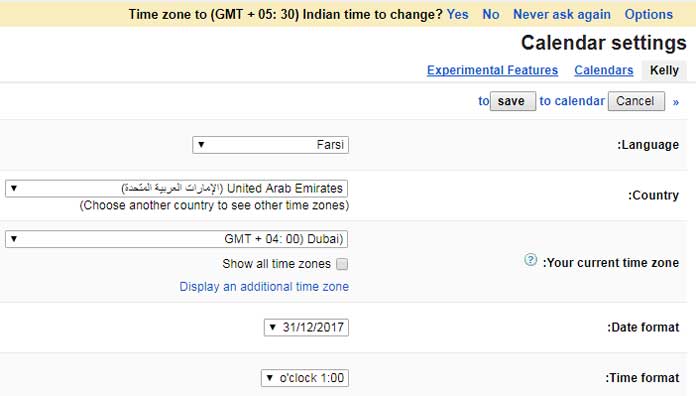
Your Google Calendar will now always appear in English.
Why Change Google Calendar Language to English?
- To avoid confusion when using the app abroad.
- For easier navigation if you’re unfamiliar with the displayed language.
- To make syncing with other Google services seamless.
FAQs on How to Change Google Calendar Language to English
Q1. How do I change Google Calendar back to English if it’s in another language?
Right-click in Google Chrome and select Translate to English, then go to Settings → Language and Region to make it permanent.
Q2. Does changing the language affect events in Google Calendar?
No, only the interface language changes. Your events and reminders stay the same.
Q3. Can I use multiple languages in Google Calendar?
Yes, but the interface only displays one language at a time. You can switch anytime in settings.
Q4. What if I can’t find the settings because of the language barrier?
Use Chrome’s Translate option first to temporarily switch to English, then navigate to settings.
Final Thoughts
Changing Google Calendar language from Chinese, Arabic, Hindi, or any other language back to English is quick and easy. Start with Chrome’s translate feature for temporary help, then update your Google Calendar language settings for a permanent fix.
