

When you need to look up one search key vertically and another horizontally, you can rely on XLOOKUP in Google Sheets. The key to performing a two-way lookup with XLOOKUP is replacing the result range of one XLOOKUP with another XLOOKUP.
Generic Formulas
=XLOOKUP("Tuesday", column, XLOOKUP("Period 3", row, data))Where column and row are the lookup column and row (usually the first column and row of a table), and data is the entire table range. ‘Tuesday’ is the vertical search key, and ‘Period 3’ is the horizontal search key.
Alternatively, you can use:
=XLOOKUP("Period 3", row, XLOOKUP("Tuesday", column, data))Both formulas will return the same result.
Example of Two-Way Lookup with XLOOKUP in Google Sheets
Assume a school schedule is stored in the range A1:G6, where column A lists weekdays, row 1 contains period names, and the grid (B2:G6) holds the assigned subjects and teachers.
Here’s how to look up the subject and teacher assigned to a specific period on a specific weekday:
=XLOOKUP("Tuesday", A1:A6, XLOOKUP("Period 3", B1:G1, B1:G6))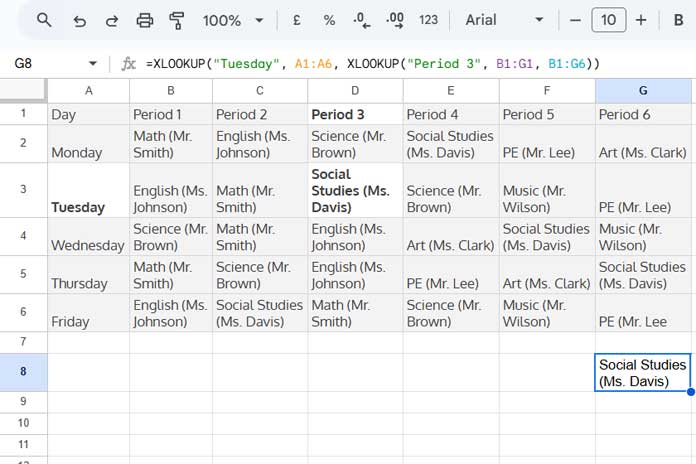
The inner XLOOKUP searches for “Period 3” in B1:G1 and returns the corresponding column (e.g., column D1:D6).
| Period 3 |
| Science (Mr. Brown) |
| Social Studies (Ms. Davis) |
| English (Ms. Johnson) |
| English (Ms. Johnson) |
| Math (Mr. Smith) |
The outer XLOOKUP then searches for “Tuesday” in A1:A6 and returns the corresponding value from D1:D6.
Alternatively, you can switch the lookup order:
=XLOOKUP("Period 3", A1:G1, XLOOKUP("Tuesday", A1:A6, A1:G6))Here, the inner XLOOKUP searches for “Tuesday” in A1:A6 and returns the corresponding row (e.g., row 3: A3:G3).
| Tuesday | English (Ms. Johnson) | Math (Mr. Smith) | Social Studies (Ms. Davis) | Science (Mr. Brown) | Music (Mr. Wilson) | PE (Mr. Lee) |
The outer XLOOKUP then searches for “Period 3” in A1:G1 and returns the corresponding value from A3:G3.
Advantages of Two-Way Lookup with XLOOKUP in Google Sheets
One advantage of this approach is its simplicity. The function is easy to understand since it simply replaces the result range of one XLOOKUP with another XLOOKUP. Another benefit is that you can use wildcard matching by setting match mode 2 in XLOOKUP.
A key advantage of two-way lookup with XLOOKUP is that the result can act as a reference. This means you can use it with OFFSET to look around that value. For example:
=OFFSET(XLOOKUP("Tuesday", A1:A6, XLOOKUP("Period 3", B1:G1, B1:G6)), 0, -1)  "Returns the previous period"
=OFFSET(XLOOKUP("Tuesday", A1:A6, XLOOKUP("Period 3", B1:G1, B1:G6)), 0, 1)  "Returns the next period"
=OFFSET(XLOOKUP("Tuesday", A1:A6, XLOOKUP("Period 3", B1:G1, B1:G6)), -1, 0) "Same period on the previous day"
=OFFSET(XLOOKUP("Tuesday", A1:A6, XLOOKUP("Period 3", B1:G1, B1:G6)), 1, 0)  "Same period on the next day"
Conclusion
This tutorial covered how to use XLOOKUP for Two-Way Lookup in Google Sheets.
If you want to explore more XLOOKUP examples in Google Sheets, including advanced lookup techniques and practical spreadsheet solutions, check out the Complete Guide to XLOOKUP in Google Sheets.




