



















This tutorial explains how to create dynamic weekend codes in Google Sheets for the functions NETWORKDAYS.INTL and WORKDAY.INTL. You’ll be able to select weekend names from a multi-select dropdown, and the formula will automatically adapt to your selection — no need to manually type 7-digit weekend codes again.
Why Dynamic Weekend Codes Matter
Calculating working days or scheduling dates in Google Sheets often goes beyond simple start and end dates.
Functions like NETWORKDAYS.INTL and WORKDAY.INTL are powerful tools that let you account for weekends and holidays in business calendars, payroll sheets, or attendance trackers.
You May Like: Google Sheets: The Complete Guide to All Date Functions
By default, these functions require weekend codes to specify which days are considered weekends. These codes can be:
- A 7-digit string like
"0000011"(Saturday and Sunday weekends), or - Numbers from 1–7 (Saturday/Sunday, Sunday/Monday, … Friday/Saturday), or
- Numbers from 11–17 (Sunday, Monday, … Saturday).
Manually typing or remembering these codes is tedious — especially when your organization uses non-standard weekends (e.g., Friday–Saturday or Thursday–Friday).
This guide will show you how to dynamically generate weekend codes based on a simple dropdown of weekday names, making your Google Sheets formulas adaptable, error-free, and easy to maintain.
By the end, you’ll be able to create templates, payroll sheets, project schedules, or attendance trackers where weekends can be customized without editing the formulas.
Step 1: Create a Multi-Select Drop-Down with Weekday Names
Let’s first create a dropdown list with weekday names.
- Select cell C2 (or any cell you prefer).
- Go to Insert → Dropdown.
- Replace “Option 1” with Mon and “Option 2” with Tue.
- Click Add another item to add Wed, Thu, Fri, Sat, Sun.
- Check the option Allow multiple items.
- Click Done.
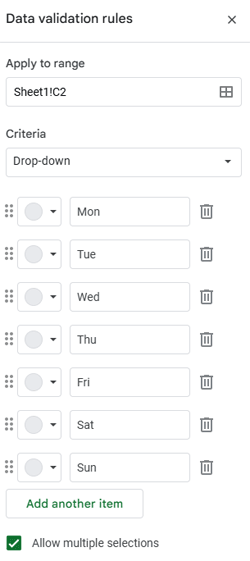
Now you have a multi-select dropdown where you can choose one or more days to define your weekend.
Step 2: Select the Weekends
Click the dropdown and select your weekends.
For example:
- If you select Sat and Sun, your weekend should be Saturday–Sunday.
- If you select Fri and Sat, it should return a weekend code for Friday–Saturday.
Step 3: Formula to Create a Dynamic Weekend Code
In cell D2, enter the following formula to generate the 7-digit weekend string dynamically:
=ArrayFormula(JOIN("", IFERROR(SIGN(SEARCH({"Mon";"Tue";"Wed";"Thu";"Fri";"Sat";"Sun"}, C2)), 0)))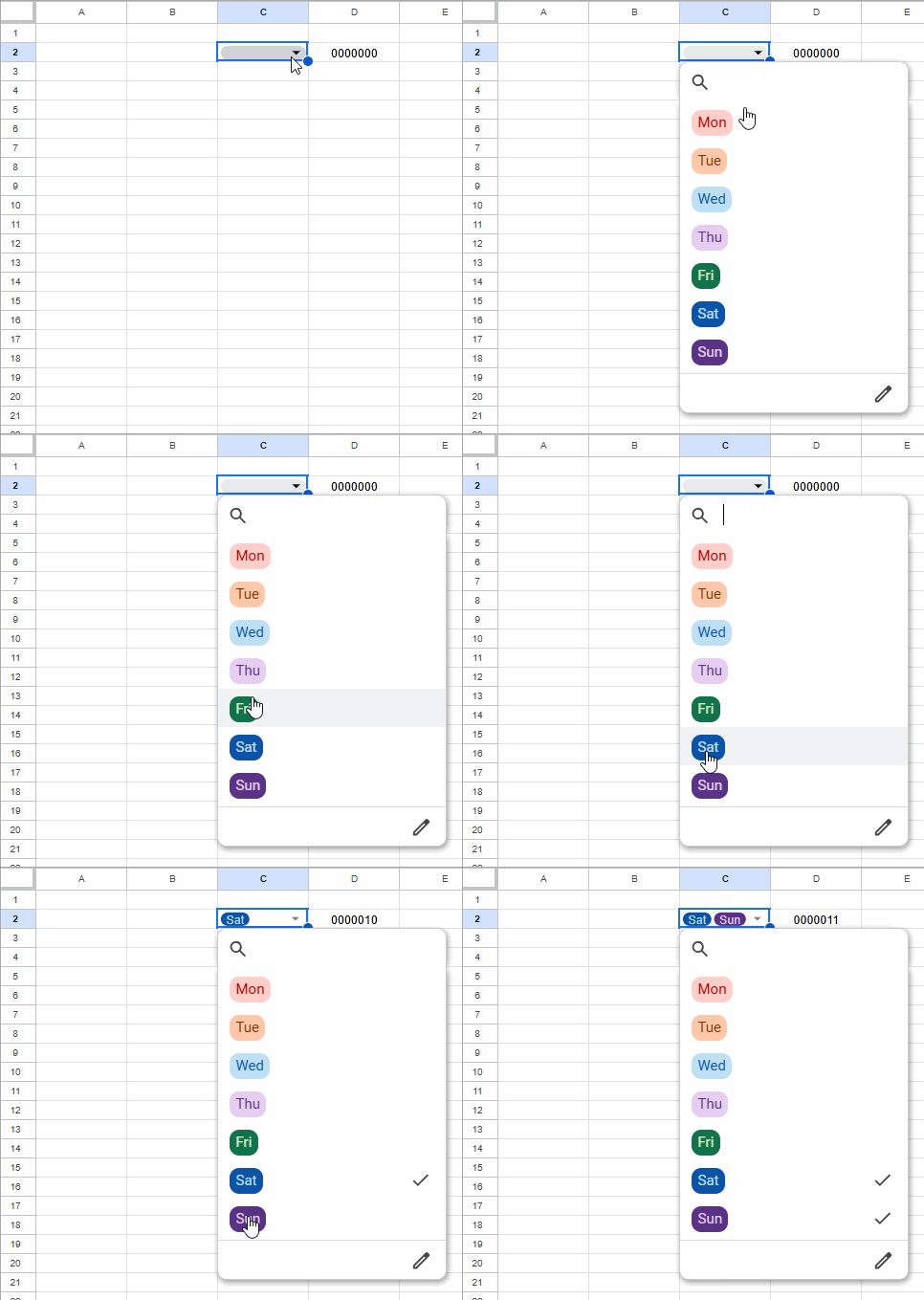
How the Formula Works
- The formula checks which weekday names are present in the dropdown cell (
C2). - For each weekday found, it assigns a
1; otherwise, it keeps a0. - Finally, it joins all digits into a single 7-character code —
"0000011"for Saturday and Sunday.
Examples:
- Selecting Sat, Sun → returns
"0000011" - Selecting Fri, Sat → returns
"0000110"
This code can now be directly used inside NETWORKDAYS.INTL or WORKDAY.INTL.
Step 4: Use Dynamic Weekend Codes in WORKDAY.INTL
Let’s test the formula.
- Enter a start date in cell A2, e.g.,
01/01/2025. - Enter the formula below in another cell (say, E2):
=WORKDAY.INTL(A2, 10, D2)This returns the date after 10 working days, excluding the weekends you selected in C2.
For example, if your weekends are Saturday and Sunday, the result will be 15/01/2025.
You can also skip the helper cell (D2) and embed the dynamic formula directly:
=WORKDAY.INTL(A2, 10, ArrayFormula(JOIN("", IFERROR(SIGN(SEARCH({"Mon";"Tue";"Wed";"Thu";"Fri";"Sat";"Sun"}, C2)), 0))))Step 5: Use Dynamic Weekend Codes in NETWORKDAYS.INTL
Now, let’s calculate the number of working days between two dates.
- Enter a start date in A2 (e.g.,
01/01/2025) - Enter an end date in B2 (e.g.,
15/01/2025) - Use this formula:
=NETWORKDAYS.INTL(A2, B2, D2)This returns 11, meaning there are 11 working days between the two dates based on your selected weekends.
Or use the inline version:
=NETWORKDAYS.INTL(A2, B2, ArrayFormula(JOIN("", IFERROR(SIGN(SEARCH({"Mon";"Tue";"Wed";"Thu";"Fri";"Sat";"Sun"}, C2)), 0))))What If You Don’t Want to Exclude Weekends?
Just clear the dropdown cell (C2) — the formula will automatically treat all days as working days (i.e., "0000000").
Final Thoughts
With this setup, you can make your Google Sheets templates dynamic, reusable, and smarter.
Instead of editing your formulas each time weekends change, simply select different days from the dropdown — and your working day calculations will instantly adapt.
It’s an excellent feature for:
- Payroll templates
- Project schedules
- Attendance or shift tracking sheets
- Any setup where weekend patterns vary
FAQs
1. What is a weekend code in NETWORKDAYS.INTL?
A weekend code is a 7-character binary string (e.g., “0000011”) that specifies which days are weekends, starting from Monday (first digit) to Sunday (last digit). A 0 represents a working day, and a 1 represents a non-working (weekend) day.
2. Can I use this for partial weekends or custom shifts?
Yes, select any combination of days in the dropdown, and the formula will automatically adapt.
3. What happens if I clear the dropdown?
All days will be treated as working days.
