



















If you’re looking for a professional and flexible Google Sheets Purchase Order (PO) template, you’re in the right place. I’ve designed this PO template to work seamlessly for both domestic and international purchases—without the need to maintain multiple files.
This template is especially useful for businesses that deal with domestic suppliers, overseas vendors, or both. It allows you to easily hide or unhide specific information based on whether the order is domestic or international, and lets you choose your preferred currency.
Additionally, this Purchase Order template includes automatic amount-to-words conversion, supporting both the US/Global numbering system (millions and billions) and the Indian numbering system (lakhs and crores).
In short, if you want a clean, automated Purchase Order (PO) that’s easy to manage, print, and share, click the button below to preview and download the file.
It’s essential to follow the instructions below to use this PO effectively, as it’s designed to be flexible and dynamic.
What This Google Sheets Purchase Order Template Includes
The template is built with two main tabs:
- PO – the actual Purchase Order you send to vendors
- Setup – a helper tab where you control currency, amount-to-words logic, and extra charges
This separation keeps the PO clean while giving you full control behind the scenes.
PO Tab – Clean, Professional Purchase Order Layout
The PO tab in this Google Sheets Purchase Order Template is designed to look professional whether you email it as a PDF or print it. Follow the steps below to adapt the layout to your business needs.

Step 1: Entering Shipping Address and Vendor Details
1. Your Company Logo & Address
At the top left, delete the placeholder text in cell A1 labeled “Place your logo here”. Then go to Insert → Image → Insert an image over the cells and upload your company logo. Adding a logo is optional, but it gives the purchase order a more professional look.
Below that, in the range B2:C7, enter your full company address, including your contact number and email address.

2. Purchase Order Number and Dates
In the range G3:H7, enter the following details:
- PO Number
- PO Date
- Delivery Date
- Payment Terms
- Shipping Method (Sea, Air, Rail, or Road)
3. Vendor Information
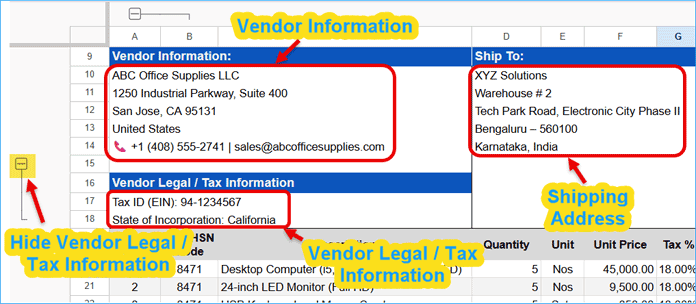
In the range A10:A14, enter the vendor’s name and address.
4. Shipping Address
Enter the delivery (ship-to) address—where you want the items delivered—in the range D10:D14.
5. Vendor Legal / Tax Information
If you are placing an international order, enter the seller’s (vendor’s) legal or tax identification details—for example, an EIN, VAT number, or similar—in cells A17:A18.
For domestic orders where this information is not required, leave these cells empty and click the ⊟ button to the left of row 15 to hide the Vendor Legal / Tax Information section.
Step 2: Entering the Purchase Order Items
First, select the range A20:G25 and press Delete to remove the sample data. Be careful not to delete H20:H25, as these cells contain formulas that calculate the line totals. Once A20:G25 is cleared, the values in H20:H25 will automatically reset.
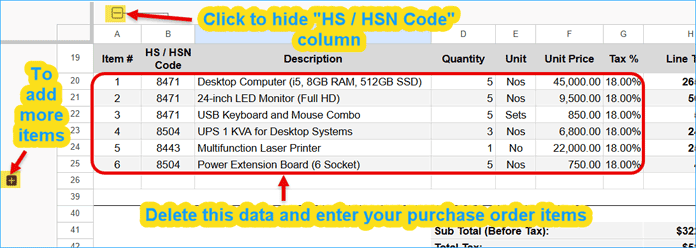
If you are issuing an internal or informal PO, you can hide the HS / HSN Code column by clicking the ⊟ button above column A. This will collapse column B. Use HS Code for international orders and HSN Code for Indian domestic orders.
Now fill in the table with:
- Item number
- HS / HSN Code (optional)
- Item description
- Quantity
- Unit
- Unit price
- Tax percentage (optional)
If you need to add more items, click the ⊞ button next to row 26 to reveal a few empty rows. After that, additional ⊞ buttons will appear step by step, letting you reveal more rows as needed.
Step 3: Currency Setup and Adding Charges
For now, leave rows 41 to 48 unchanged. These fields—Subtotal, Tax, S&H, Others, and Amount Payable—are driven by inputs in the Setup tab. We’ll configure them after finishing the PO tab of this Google Sheets Purchase Order Template.
Step 4: Adding Terms and Conditions
The terms and conditions appear in the range B51:G57. You can edit these to suit your requirements.
To add more conditions, click the ⊞ button next to row 58 to reveal a few additional rows. More ⊞ buttons will appear step by step, letting you reveal more rows as needed.
You don’t need to enter anything in A51:A57 (or below), as the numbering is generated automatically by the formula in cell A51.
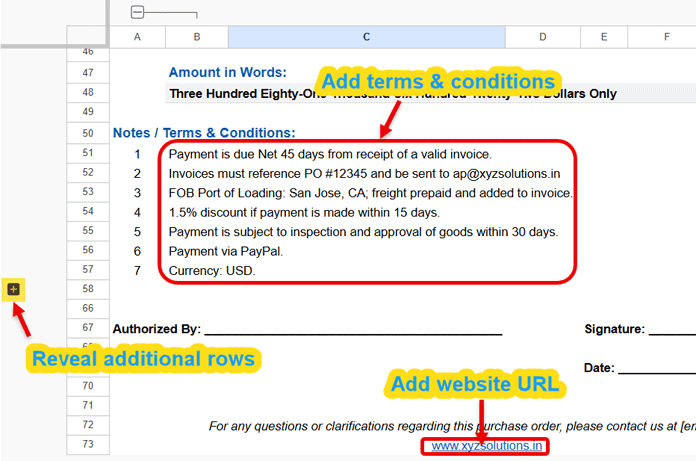
Note: You can even enter terms and conditions in every other row—the numbering will automatically leave gaps for the empty rows.
Step 5: Final Touches in the PO Tab
Scroll to the bottom of the sheet and replace the sample website URL with your company’s website address.
That completes the setup of the PO tab. Next, move on to the Setup tab to finalize the configuration and start using the purchase order efficiently.
Setup Tab – Automation and Currency Configuration
The Setup tab is where all the automation for this Google Sheets Purchase Order Template is controlled. From here, you manage currency formatting, the amount-to-words conversion system, and additional charges such as shipping and miscellaneous costs that appear automatically in the purchase order.
1. Amount-to-Words System Selector
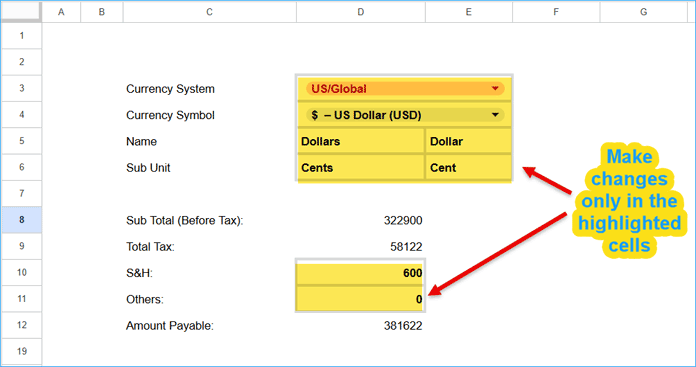
A drop-down in cell D3 lets you choose how numbers are converted into words:
- US / Global → Million / Billion numbering system
- Indian → Lakh / Crore numbering system
This selection controls how the Amount in Words appears in the PO tab.
Example:
- Global system:
Three Hundred Eighty-One Thousand Six Hundred Twenty-Two [Currency Name] Only - Indian system:
Three Lakh Eighty-One Thousand Six Hundred Twenty-Two [Currency Name] Only
Note: You can customize the currency name and sub-unit in the Setup tab to suit your requirements, and we’ll discuss that below.
2. Currency Selection Drop-Down
In cell D4, select the currency symbol from a predefined list, such as:
- $ – US Dollar (USD)
- € – Euro (EUR)
- £ – British Pound (GBP)
- ₹ – Indian Rupee (INR)
If your country’s currency symbol is not available, scroll to the bottom of the list and add it in cell C37. Once added, it will automatically appear in the drop-down.
The selected currency symbol is automatically applied to the following fields in the PO tab:
- Sub Total (Before Tax)
- Total Tax
- S&H
- Others
- Amount Payable
You don’t need to format anything manually.
3. Currency Name & Sub-Unit Configuration
To ensure grammatically correct text in the Amount in Words, you can define the currency names in the Setup tab:
- Currency name (singular & plural) in cells D5 and E5
- Example: Dollar / Dollars
- Sub-unit name (singular & plural) in cells D6 and E6
- Example: Cent / Cents
This allows the Google Sheets Purchase Order Template to work correctly with any global or local currency.
4. Shipping & Handling and Other Charges
Instead of editing totals directly in the PO, enter these values in the Setup tab:
- Shipping & Handling (S&H) amount in cell D10
- Others amount (optional) in cell D11
These values:
- Automatically appear in the totals section of the PO
- Are included in the Amount Payable
- Are reflected correctly in the Amount in Words
This setup makes the template especially suitable for FOB Port of Loading, Sea Freight, and Air Freight purchase order scenarios.
Why This Purchase Order Template Works for Both Domestic and International Orders
My free Purchase Order template is feature-rich and highly customizable. Below are the key settings and features that make this template adaptable for both global Purchase Orders (PO) and Local Purchase Orders (LPO).
- The HS / HSN Code column can be shown or hidden as needed
- Vendor legal details can be grouped and hidden for a cleaner layout
- Currency and numbering systems adapt instantly
- A single template supports INR, USD, EUR, GBP, and more
- Clean enough for domestic POs, yet detailed enough for international trade
You no longer need separate templates for domestic and international purchases.
Who Should Use This Google Sheets Purchase Order Template?
This Google Sheets purchase order template is ideal for a wide range of users, including:
- Small businesses and startups
- Finance and accounts teams
- Import/export businesses
- Freelancers and agencies dealing with overseas vendors
- Anyone who wants a simple but powerful PO system in Google Sheets
Prefer to watch? See how to use this all-in-one Google Sheets purchase order template in the step-by-step video below.
Final Thoughts
As you’ve seen, this template includes several useful features—such as converting the total amount to words in the selected currency, grouping options that let you easily switch between domestic and international use, and expandable rows to add more items when needed.
In short, this Google Sheets Purchase Order template is built to be:
- Professional
- Flexible
- Easy to customize
- Suitable for both Indian and global use
With the Setup tab handling all the currency and formatting logic, and the PO tab staying clean and presentation-ready, you truly get the best of both worlds.
Related Google Sheets Templates & Guides
If you’re looking for more Google Sheets templates and step-by-step guides, you may also find these helpful:
- How to Use a Free Google Sheets Invoice Template (Step-by-Step Guide)
- Create an Accounts Receivable Aging Report in Google Sheets
- Google Sheets – Allocate Payment Receipts Against Invoices
- Free Time Blocking Template in Google Sheets (Smart & Easy to Use)
- All-in-One Travel and Itinerary Planner Template in Google Sheets
