



















If you work in HR or payroll, calculating each employee’s service days is a recurring task — whether for final settlements, monthly payroll, or attendance tracking. That’s where my free Service Days & Custom Leave Tracker template comes in handy. The calculations are fully automated, so you don’t have to perform manual counting or enter formulas yourself.
My Google Sheets service days calculator is a ready-to-use payroll template that automatically calculates month-wise service days, handles public holidays, supports custom weekends, and deducts leave days accurately.
If you’ve read my earlier posts:
- Calculate Days in Each Month Between Two Dates in Google Sheets
- NETWORKDAYS.INTL & WORKDAY.INTL: Create Dynamic Weekend Codes in Google Sheets
…you’ll recognize the underlying logic. This template builds on that foundation but adds:
- Support for custom leaves
- Automatic net working day adjustments
- Aggregated monthly reports for each employee
Why Use a Service Days Calculator
A service days calculator offers:
- A clear breakdown of monthly working days for each employee
- Automatic exclusion of weekends and holidays
- Real-time deduction of leave days
- Payroll-ready totals for every employee
Once your data is set up, everything happens automatically — no hidden macros or manual counting required. The automation is powered by a single modern formula that handles all calculations in one go.
Best of all, my service days calculator template is completely free — no subscriptions or one-time fees.
Template Overview
This Google Sheets payroll template contains three tabs:
- Employee Data – enter employee records and leave information
- Holidays – define official holidays
- Service Days Calculator – automatically generated report
Let’s go through them step by step.
1. Employee Data
Start in the Employee Data tab.
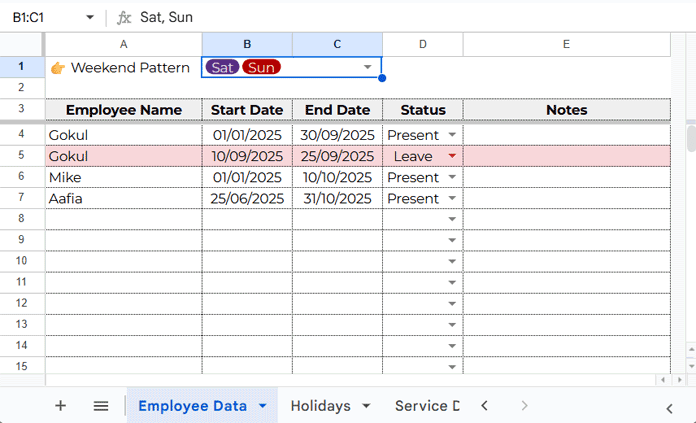
At the top (cell B1), you’ll find a multi-select drop-down to choose weekend days (e.g., Sat, Sun).
In the table range A4:E, enter your employee records like this:
Data entry rules:
- Enter the full service period as Present.
- Enter leaves as separate records with Status = Leave.
- For a leave of a single day, use the same date in both Start Date and End Date.
Proper data entry ensures your service days calculator works accurately.
2. Holidays
Switch to the Holidays tab and enter official holidays:
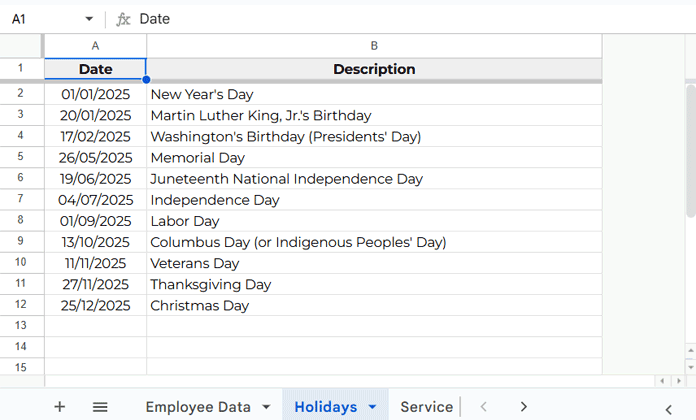
You can replace this list with your region’s official holidays — the calculator automatically excludes them from the working day count.
3. Service Days Calculator
The Service Days Calculator tab generates a full-year summary of service days for each employee, factoring in weekends, holidays, and custom leaves.
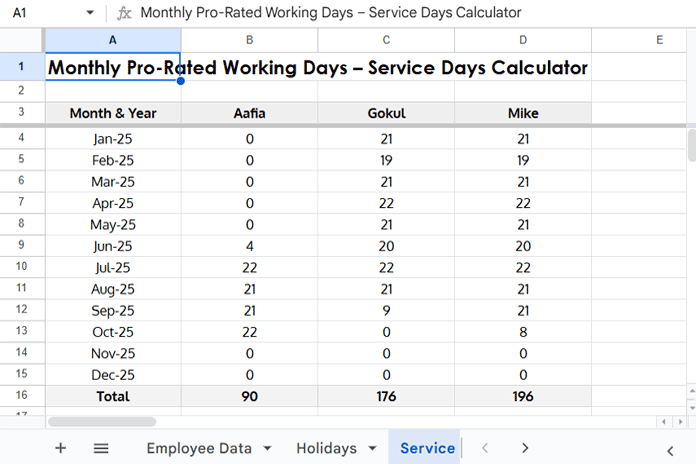
The totals at the bottom reflect net service days for the year.
How the Service Days Calculator Works
Step 1: Core Working Days Formula
The sheet uses a modern formula in cell A3:
=ARRAYFORMULA(
  LET(lRow, XMATCH("?*", 'Employee Data'!A:A, 2, -1),
    start, INDIRECT("Employee Data!B4:B"&lRow),
    end, INDIRECT("Employee Data!C4:C"&lRow),
    status, INDIRECT("Employee Data!D4:D"&lRow),
    emp, INDIRECT("Employee Data!A4:A"&lRow),
    wEnd, JOIN("", IFERROR(SIGN(SEARCH({"Mon";"Tue";"Wed";"Thu";"Fri";"Sat";"Sun"}, 'Employee Data'!B1)), 0)),
    hDays, TOCOL(Holidays!A2:A, 3),
    header, EDATE(DATE(YEAR(MIN(start))-1, 12, 1), SEQUENCE(1, (YEAR(MAX(end))-YEAR(MIN(start))+1)*12)),

    fnl, MAP(start, end, LAMBDA(x, y,
      LET(
        bom, EOMONTH(x, -1)+1,
        rawDts, VSTACK(x, y, EDATE(bom, SEQUENCE(DATEDIF(bom, EOMONTH(y, 0), "M")))),
        dts, TOCOL(SORTN(rawDts, 9^9, 2, EOMONTH(rawDts, 0), 1), 3),
        cntDts, COUNT(dts),
        XLOOKUP(
          header, EOMONTH(dts, -1)+1,
          IF(cntDts=1,
            NETWORKDAYS.INTL(x, y, wEnd, hDays),
            IF(dts=MIN(dts),
              NETWORKDAYS.INTL(dts, EOMONTH(dts, 0), wEnd, hDays),
              IF(dts=MAX(dts),
                NETWORKDAYS.INTL(EOMONTH(dts, -1)+1, dts, wEnd, hDays),
                NETWORKDAYS.INTL(EOMONTH(dts, -1)+1, EOMONTH(dts, 0), wEnd, hDays)
              )
            )
          ),
          0
        )
      )
    )),

    rRslt, HSTACK(emp, IF(status="Leave", UMINUS(fnl), fnl)),
    rslt, QUERY(rRslt,
      "SELECT Col1, "&JOIN("), ", "SUM(Col"&SEQUENCE(1, COLUMNS(header), 2))&")"&" GROUP BY Col1", 0),

    TRANSPOSE(VSTACK(HSTACK("Month & Year", header, "Total"), QUERY(HSTACK(rslt, BYROW(rslt, LAMBDA(z, SUM(z)))), "OFFSET 1", 0)))
  )
)
This formula follows the approach described in my tutorials but adds:
- Handling for leave days (entered as separate records)
- Column-wise data output instead of row-wise
- A Total row at the bottom
Tips for Customization
- Add or remove employees — formulas adjust automatically
- Change weekend patterns (Sun only, Fri–Sat, etc.) using the selector
- Update holidays once per year — no need to edit formulas
Download Free Google Sheets Service Days Calculator
Open it, make a copy, and start tracking service days instantly. The service days calculator automatically accounts for weekends, holidays, and leaves — giving you accurate, month-wise totals ready for payroll or attendance reports.
