



















Do you want to manage all aspects of your rental properties, such as tracking tenants, leases, rent payments, expenses, and maintenance? To make this easier, I created a fully automated Rental Property Manager Template in Google Sheets. It is designed for landlords, property managers, and real estate investors who want a clean, easy-to-use system without expensive software.
This template includes essential modules such as Property List, Tenant List, Rent Collection, Expenses, Maintenance, and a powerful Dashboard that automatically calculates key performance metrics.
In this premium free template, I have included features such as highlighting, array formulas, formula-based dependent drop-downs for error-free data entry, and a number-to-words converter. No scripts or Apps Script functions are used, to avoid authorization pop-ups and ensure smooth compatibility.
You can download the template below:
Template Highlights
- Track properties, tenants & leases
- Automated rent balance
- Expense and maintenance tracking
- Dashboard with performance metrics
- No scripts or coding required
This template requires proper guidance to use it without breaking data validations, warnings (conditional formatting), or formulas. This tutorial explains how to use the free Rental Property Manager Template for Google Sheets effectively.
Why Use Google Sheets to Track Rental Properties?
Google Sheets is free, easy to access, and even works offline — your updates will automatically sync once you’re back online. Since it’s available across devices and supports real-time collaboration, it’s a convenient and flexible tool for anyone looking to track rental properties and manage day-to-day operations efficiently.
Free Rental Property Manager Template for Google Sheets — Overview
This template contains 6 main tabs and 5 helper tabs.
The helper tabs support dependent drop-downs and background data. You can safely ignore them during normal use — they’re already hidden to reduce clutter and make navigation easier.
Main Tabs
These are the tabs where you will enter data and view status in this free rental property manager template for Google Sheets:
| Tab Name | Purpose |
|---|---|
| Property List | Enter and manage your properties |
| Tenant List | Add tenants and assign them to properties and units |
| Rent Collection | Record monthly rent collection details |
| Expense | Track property-related expenses |
| Maintenance | Manage maintenance tickets and repair records |
| Dashboard | View key performance metrics and reports |
Removing Sample Data
The template includes sample data for demonstration. You may delete the records in sample rows but do not delete the header rows.
Simply select the sample rows and press Delete on your keyboard.
Important:
- Do not delete or insert rows
- Do not copy-paste data into the sheets
Doing so may break formatting, conditional highlights, dependent drop-downs, or formulas.
I’ll explain how to use each sheet in the following sections.
To get the full benefit of this premium free Rental Property Manager Template for Google Sheets, please follow the instructions carefully.
How to Use the Free Rental Property Manager Template in Google Sheets
In this section, I will explain how to use the free rental property manager template for Google Sheets effectively.
1. Property List
This sheet is where you will enter and manage all your properties.

The visible columns in this sheet are:
| Property ID | Property Name | Address | Type | Purchase Date | Owner | Units | Occupied Y/N | Status |
You should manually enter data into the following columns:
- Property ID
- Property Name
- Address
- Type
- Purchase Date
- Owner
- Units
- Status
The Occupied Y/N column is automatically generated using formulas, indicating whether a unit is currently vacant or occupied.
If a property contains multiple units, enter each unit individually in column M (one unit per row).
In column O, specify the status of each unit (for example: Active, Under Maintenance, Pending Approval). This helps identify which units are available for rent.
There are also hidden helper columns that automatically duplicate property details across units so you don’t need to re-enter information manually.
Deleting Mock-up Data
When using the template for the first time:
- Select range A4:O (below the headers)
- Press Delete on your keyboard
Important: Do not delete or insert rows within the existing structure.
You may add more rows only after row 1000 using the “Add more” button that appears at the bottom of the sheet. This applies to all sheets in the template.
2. Tenant List
The Tenant List sheet in the Rental Property Manager Template for Google Sheets includes the following fields:
- Tenant ID
- Name
- Phone
- Property ID
- Property Name
- Unit No
- Lease Start
- Lease End
- Rent Amount
- Deposit
- Emergency Contact
- Documents Link
Fill in all columns except the Property Name column, as it is populated automatically using formulas.
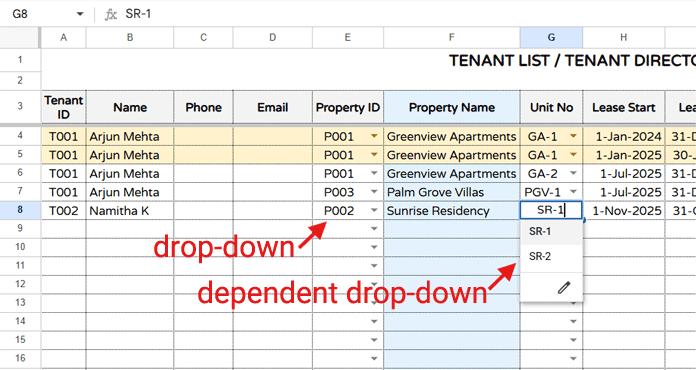
The Property ID column contains a drop-down list, and the Unit No column contains a dependent drop-down that displays only the units available for the selected Property ID.
Tenant List Notes
- Delete the mock-up data in A4:M before first use.
- Do not delete or insert rows within the existing structure. Add new rows only after row 1000.
- Do not copy-paste rows into the sheet, as this may break data validation, conditional formatting, and formulas.
- The Occupied Y/N column in the Property List sheet automatically uses data from this Tenant List to determine occupancy.
- When selecting a Unit No, ensure the unit is vacant by checking the Occupied Y/N column in the Property List. Units with a ✅ mark should not be assigned.
- Units under maintenance are highlighted in red in the Unit No column.
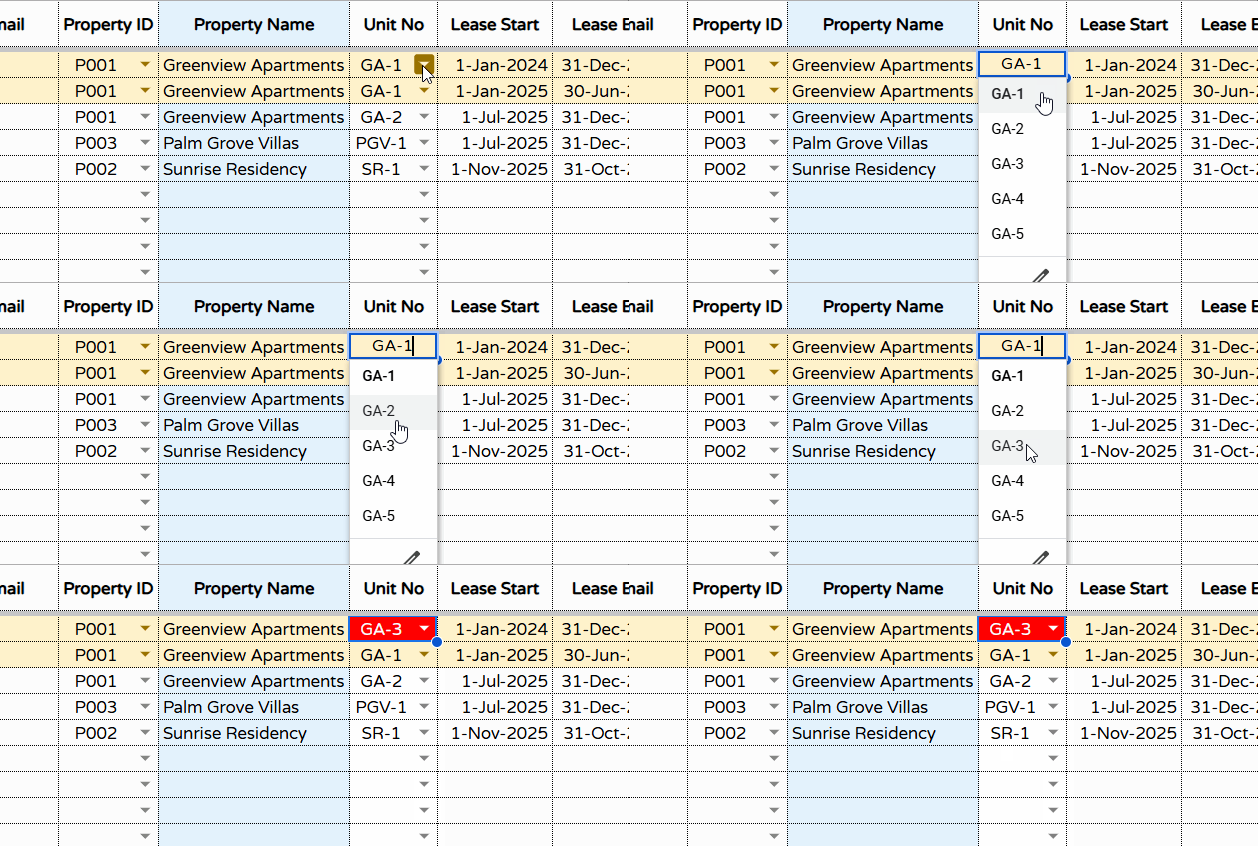
- Rows with expired lease contracts are highlighted in light orange for quick reference.
- Enter older records first (at the top) and add newer records below the last existing record.
Keeping records in chronological order is important for Lease Start / Lease End tracking, rent renewals, and occupancy status formulas.
If the rent amount changes mid-lease or when renewing a contract after the original lease ends:
- Update the Lease End date in the existing record to reflect the last day the old amount was valid.
- Create a new record for the updated rent amount starting from the next day — do not insert rows; instead, add the new entry below the last existing record.
3. Rent Collection
The Rent Collection sheet is one of the most important sheets in the Rental Property Manager Template for Google Sheets. This is where you record all rent payments month by month.
It includes the following fields:
- Tenant ID
- Name
- Property ID
- Unit No
- Month
- Rent
- Rent Received
- Date Paid
- Payment Mode
- Balance
- Late Fee
- Notes
How to Enter Data in the Rent Collection Sheet
Assume a tenant with Tenant ID: T001 (already recorded in the Tenant List sheet) has rented a unit for 12 months, from 1 Jan 2024 to 31 Dec 2024.
For this tenant, you should create 12 rent records immediately — one for each month:
- Select the range A4:L and press the Delete key on your keyboard.
- In cell A4, select Tenant ID (T001) from the drop-down.
- The Name in column B will auto-populate.
- In column C, select the Property ID.
- In column D, select the Unit No — the dependent drop-down will display only the units assigned to T001 for the selected property.
- In column E, enter the month start date (e.g., 01/01/2024) — it will automatically format to Month & Year.
- Enter the Rent Amount in column F.
- Repeat this process for 11 additional rows (one row per month).
When the tenant begins making payments:
- Enter the amount received in column G
- Enter the Date Paid in column H
- Select the Payment Mode in column I
- Add a Late Fee (if applicable) in column K
The Balance in column J is calculated automatically.

This setup ensures that the Dashboard automatically displays rent received, pending rent, arrears, and overall financial performance.
Repeat the same steps for each tenant to keep your rental records accurate and up to date.
Note:
If you have multiple tenants in this sheet and the first tenant renews their contract, do not insert rows. Instead, enter the renewed lease as a new record below the last data row.
4. Expense Sheet
In the Expense sheet, select the Property ID and enter the expense details, including vendor, category, amount, paid by, notes, and receipt link.
To clear the sample data before entering your expenses, select the range A4:H, press Delete, and then start entering your records.
5. Maintenance Sheet
In the Maintenance sheet, select the Property ID, Unit No, and enter the maintenance details including ticket ID, issue description, assigned person, estimated cost, status, completion date, and notes.
The dummy data is in A4:J. Delete them before proceeding.
6. Dashboard
In the Dashboard sheet of the Rental Property Manager Template for Google Sheets, enter the start date and end date of the period you want to analyze in cells C5 and C6.
For example, to view data for the year 2025, enter 01/01/2025 and 31/12/2025.
The dashboard will automatically display key performance metrics such as:
| Metric | Value | Amount in Words |
|---|---|---|
| Total Rent Collected | 545,000.00 | Five Hundred Forty-Five Thousand Dollars and No Cents |
| Late Fee Collected | 1,100.00 | One Thousand One Hundred Dollars and No Cents |
| Pending Rent | 80,000.00 | Eighty Thousand Dollars and No Cents |
| Total Expenses | 30,000.00 | Thirty Thousand Dollars and No Cents |
| Profit | 516,100.00 | Five Hundred Sixteen Thousand One Hundred Dollars and No Cents |
| Occupancy Rate (As on Date) | 23% | — |
| Open Maintenance Tasks | 2 | — |
The last column converts numbers to words using the custom function NUM_TO_WORDS_US().
A Sparkline chart is included to visually display occupancy trends, making it easier to monitor your rental portfolio at a glance.
Note: You can customize the output to display amounts in Lakhs and Crores (Indian numbering system) or change Dollars and Cents to any other currency. For guidance, check out [Convert Numbers to Words in Google Sheets (US & Indian Formats)].
Frequently Asked Questions (FAQs)
1. Is this Rental Property Manager Template for Google Sheets completely free?
Yes, the template is free to use. You can customize it to suit your rental business without restrictions.
2. Do I need coding or Apps Script knowledge to use this template?
No. The template uses only formulas—no scripts or macros—so you will not face authorization issues or blocked script permissions.
3. Can I track multiple properties and units?
Yes. You can add unlimited properties and unlimited units. Just make sure to add rows only after the 1000th row to maintain dependent drop-down features.
4. How do dependent drop-downs work in the Rental Property Manager Template for Google Sheets?
Dependent dropdown lists automatically filter Unit Numbers based on the selected Property ID. Hidden helper tabs manage this functionality internally.
5. What happens if a unit is already occupied?
Occupied units show a tick mark (✅) in the Property List tab under Occupied Y/N. Do not assign a tenant to a unit showing a tick.
6. How do I handle rent renewal or rent amount changes?
If rent changes mid-lease:
- Update the Lease End date in the current record to the last valid date.
- Create a new record with the updated rent amount.
7. Can I copy and paste rows to speed up data entry?
No. Do not copy-paste rows, as it can break data validation, formulas, and conditional formatting. Always use a new empty row.
8. Does the Dashboard update automatically?
Yes. When you enter or update data in other sheets, the Dashboard recalculates rent collected, pending rent, expenses, profit, occupancy rate, and open maintenance tasks.
9. Can this template be used collaboratively with multiple users?
Yes. Since it is built in Google Sheets, you can share and collaborate in real time with team members, accountants, or property managers.
10. Can I add more sheets or modify the structure?
Yes, you can rename sheets or add additional sheets if needed. However, avoid deleting rows or modifying the existing table structure unless you clearly understand how the formulas work.
If you rename sheet names, make sure to update the Conditional Formatting rules in the Tenant List sheet, because sheet names are referenced inside INDIRECT formulas and they do not update automatically when sheet names change. This may cause highlighting stop working.
Conclusion
Managing rental properties becomes significantly easier when you have a clear, organized, and automated system in place. This Free Rental Property Manager Template in Google Sheets helps landlords, real estate investors, and property managers track everything—from properties and tenants to rent collection, expenses, and maintenance—without needing expensive software or coding skills.
With automated formulas, dependent drop-downs, occupancy tracking, performance dashboards, and smart highlighting, you can maintain accurate records and make informed decisions with confidence. Since it runs on Google Sheets, you also benefit from real-time collaboration, accessibility from any device, and zero additional cost.
Whether you manage a single rental unit or a portfolio of properties, this template provides a solid foundation to streamline your workflow and keep everything under control.
Start using the template today and experience how much time and effort it can save.
