



















Excel users often rely on the SCAN function to calculate running totals. While SCAN works well in many scenarios, using it for reverse running totals can lead to results that look correct but are mathematically wrong in certain cases—especially when negative values are involved.
Before diving into formulas, let’s first clarify what a reverse running total actually means.
What Is a Reverse Running Total in Excel?
In simple terms, imagine you have:
- a fixed budget, and
- a list of planned transactions.
At each row, you want to know the remaining amount from that row onward. This calculation is commonly (and loosely) referred to as a reverse running total.
Formally, this is known as a suffix sum.
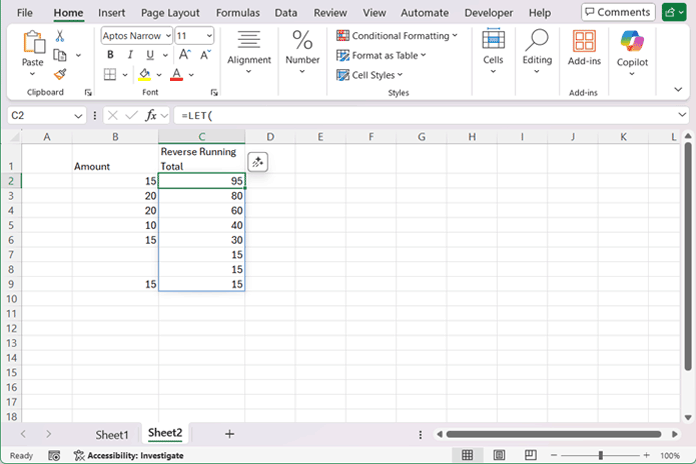
Sample Data
Assume you have the following data in column B (B2:B9):
15
20
20
10
15
(blank)
(blank)
15
Blank cells represent future or optional entries and must be ignored.
A Popular Reverse Running Total Formula That Appears to Work
Many advanced Excel users rely on the following logic:
=LET(
  amt, B2:B9,
  rt, SCAN(0, amt, LAMBDA(a, b, a + b)),
  t, MAX(rt),
  t - rt + amt
)
Why this formula looks correct
SCAN()generates a running totalMAX(rt)appears to return the final total- Subtracting the running total and adding the current value creates a “reverse” effect
The result looks like this:
95
80
60
40
30
15
15
15
The output shows no errors or warnings, and the results appear correct—making the issue easy to miss.
The Silent Assumption (This Is the Bug)
This formula assumes that the cumulative total only increases.
As long as all values are positive, the running total is monotonic, and MAX(rt) coincidentally equals the total sum.
That coincidence is mistaken for correctness.
Introduce One Realistic Change: A Negative Value
Now change just one value:
15
20
20
-55
15
(blank)
(blank)
15
Negative values are common in real-world data:
- budget adjustments
- refunds
- corrections
- inventory returns
The Same Formula — Now Produces Wrong Results
Using the exact same formula:
=LET(
  amt, B2:B9,
  rt, SCAN(0, amt, LAMBDA(a, b, a + b)),
  t, MAX(rt),
  t - rt + amt
)
The result is now incorrect.
Why?
MAX(rt) no longer represents the total sum.
It represents only the largest prefix sum.
This is the worst kind of spreadsheet bug:
❌ No error
❌ No warning
❌ Wrong result
A Common “Fix” — Still Conceptually Wrong
Once the issue with MAX(rt) is noticed, a common fix is to replace it with the actual total using SUM(B2:B9).
One way to do this is by modifying the original formula:
=LET(
  amt, B2:B9,
  rt, SCAN(0, amt, LAMBDA(a, b, a + b)),
  t, SUM(B2:B9),
  t - rt + amt
)
Another popular alternative is to rewrite the logic entirely as:
=SCAN(SUM(B2:B9), B2:B9, LAMBDA(a, v, a - v)) + B2:B9Both formulas return the correct numeric result, even when the data contains negative values.
However, they are still not true reverse running totals.
Why This Approach Is Fundamentally Unsafe in Excel Models
A reverse running total is not a rearranged forward running total.
Formally, what we want is:
Result[i] = SUM(values[i … end])This is a suffix sum.
Any formula that:
- computes a forward cumulative sum, then
- rearranges or adjusts the result
- without changing the direction of computation
…is actually calculating a remaining balance from a fixed total, not a reverse running total.
To compute a reverse running total correctly, the calculation must:
- start from the bottom
- accumulate upward
- preserve the original order
In Excel, that means:
reverse → SCAN → reverse back
The Foolproof Reverse Running Total Formula
(Handles negative values and blanks)
=LET(
  flip, LAMBDA(range, SORTBY(range, SEQUENCE(ROWS(range)), -1)),
  rc, SCAN(0, flip(B2:B9), LAMBDA(acc, val, acc + val)),
  flip(rc)
)
Why This Formula Works
- True bottom-up accumulation
- Single pass (O(n))
- No assumptions about positive values
- Blanks are naturally ignored
- No reliance on
MAX()or monotonicity
This approach is correct, remains stable under all data conditions, and scales efficiently to large ranges without performance issues.
The Real Lesson (Key Takeaway)
If a reverse running total formula works only when all values are positive, it is not correct—it is coincidentally correct.
The defining factor is direction of computation, not formula cleverness.
Why This Matters in Real Models
This distinction directly affects:
- budget planning
- inventory remaining
- forecast depletion
- future balances
- financial corrections
If a formula silently breaks when a negative value appears, it cannot be trusted in production models.
Conclusion
Most “reverse running total” tutorials work only because the example data is friendly.
Real data is not.
This article exists to show the difference.
